

Network printers often fail due to connectivity, driver, or configuration issues—here's how to fix them.
I have spent over a decade troubleshooting network printers in offices and schools. I know what causes common failures and how to fix them fast. This guide on Network Printer Troubleshooting gives clear steps, simple checks, and real-world tips so you can get printers back online with less stress.

36% off Today’s Exclusive Deals
Limited-time Exclusive Deals. Check current discount on Amazon.
Check Price on Amazon As an Amazon Associate I earn from qualifying purchases.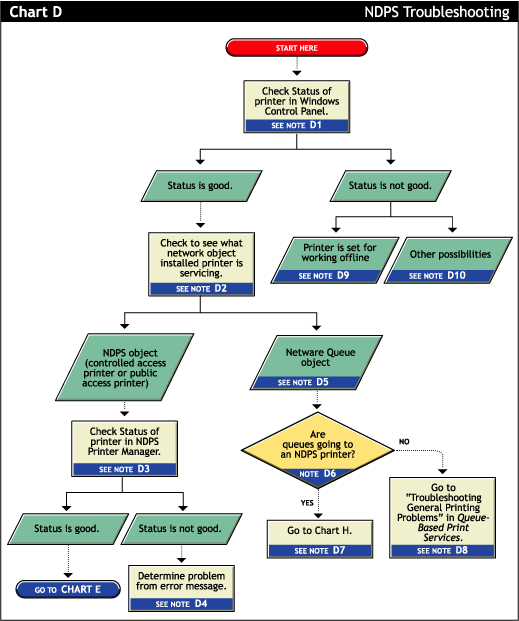
Why network printers fail: common causes and quick diagnosis
Network Printer Troubleshooting starts with knowing why printers stop working. Many failures trace to simple issues like lost Wi-Fi, wrong IP addresses, or outdated drivers. Hardware faults, print spooler errors, and security blocks also cause trouble. Spotting the root cause fast saves time and helps you apply the right fix.
Quick troubleshooting checklist you can run in five minutes
Use this checklist for fast Network Printer Troubleshooting before deep dives. Run each step and note results.
- Verify power and status lights. Confirm the printer is on and shows no critical error codes.
- Check network connectivity. Ensure the printer has an IP address and ping it from a computer.
- Confirm driver and queue. Open the print queue, cancel stuck jobs, and verify the correct driver is installed.
- Test with another device. Print from a different computer or phone to isolate the issue.
- Restart devices. Reboot the printer, router, and affected computers.
This checklist often finds the issue in minutes. Repeat checks after each fix to see progress.
)
Step-by-step Network Printer Troubleshooting guide
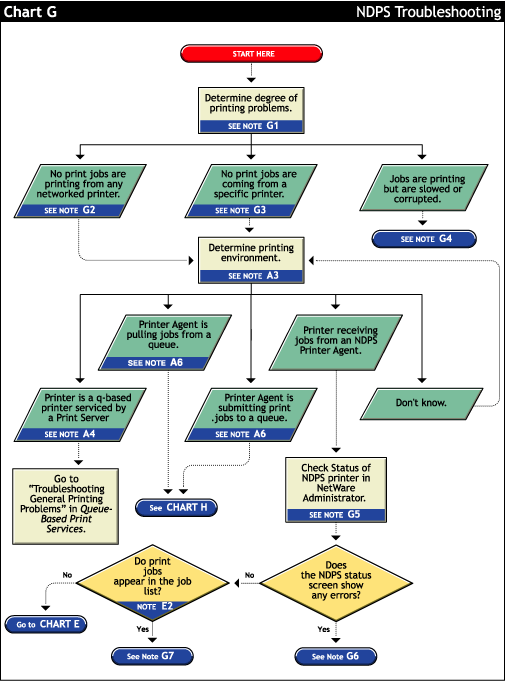
Follow this ordered approach for thorough Network Printer Troubleshooting.
- Check basics first
- Confirm power, paper, and toner. Low supplies can block jobs.
- Look at the printer display for error codes and status messages.
- Verify network settings
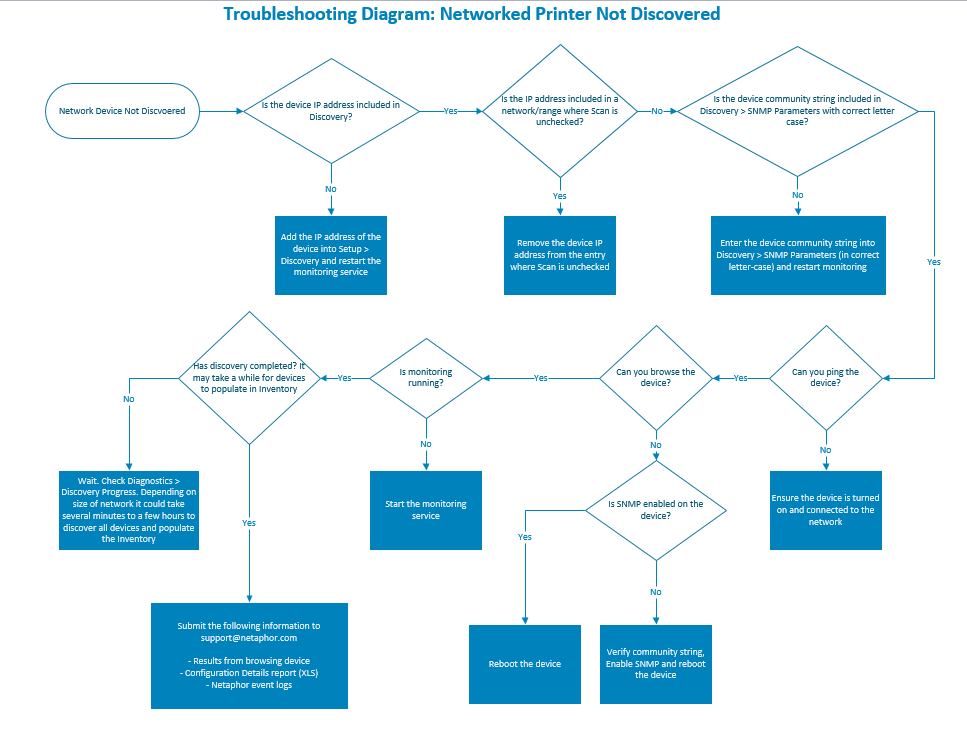
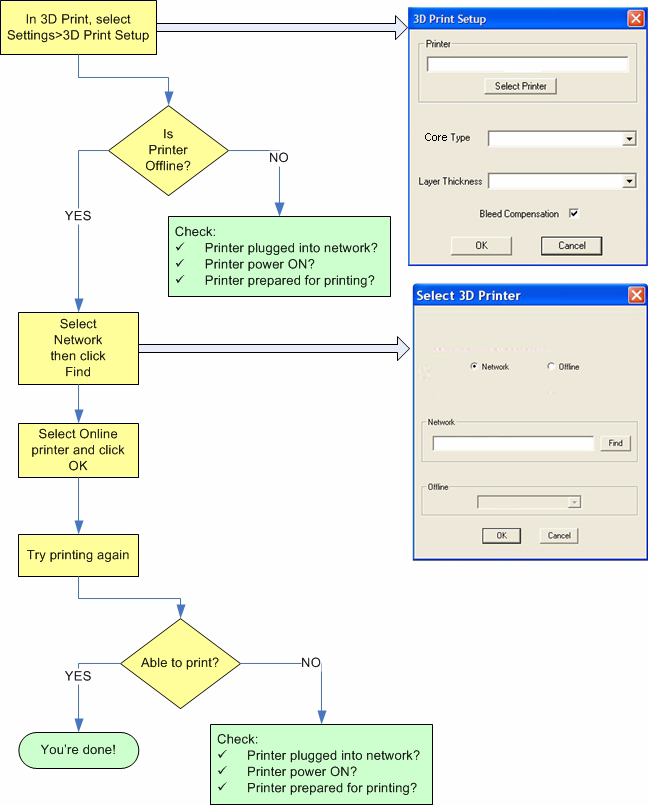
- Print a network configuration page from the printer.
- Confirm the IP address, subnet mask, gateway, and DNS are correct.
- Ping and trace
- From a workstation, ping the printer IP to check reachability.
- Use tracert/traceroute if pings fail to see where packets drop.
- Check drivers and queues
- Open the print spooler on Windows or the printer settings on macOS.
- Delete stuck jobs and reinstall drivers if needed.
- Firewall and security
- Ensure firewall rules allow printing protocols like IPP, LPD, or SMB.
- Disable security software briefly to test if it blocks print traffic.
- Firmware and updates
- Check the printer firmware version and update if a known bug exists.
- Update client drivers to match the firmware when suggested.
- DHCP vs static IP
- Decide if the printer should use DHCP or a fixed IP.
- Use DHCP reservations or static IP to avoid address changes that break printing.
This flow helps with Network Printer Troubleshooting from simple to complex problems.
People also ask
How do I reset a network printer to factory settings?
Most printers have a reset in the settings menu or on the control panel. Reset will clear network config and require reconfiguration on the network.
Can a bad driver stop all users from printing?
Yes. A corrupted or wrong driver can crash the print spooler or reject jobs. Reinstalling a proper driver often restores service.
Is it safe to update printer firmware?
Firmware updates fix bugs and add features, but always read release notes. Backup settings and perform updates during low-use hours.
Common error messages and how to fix them
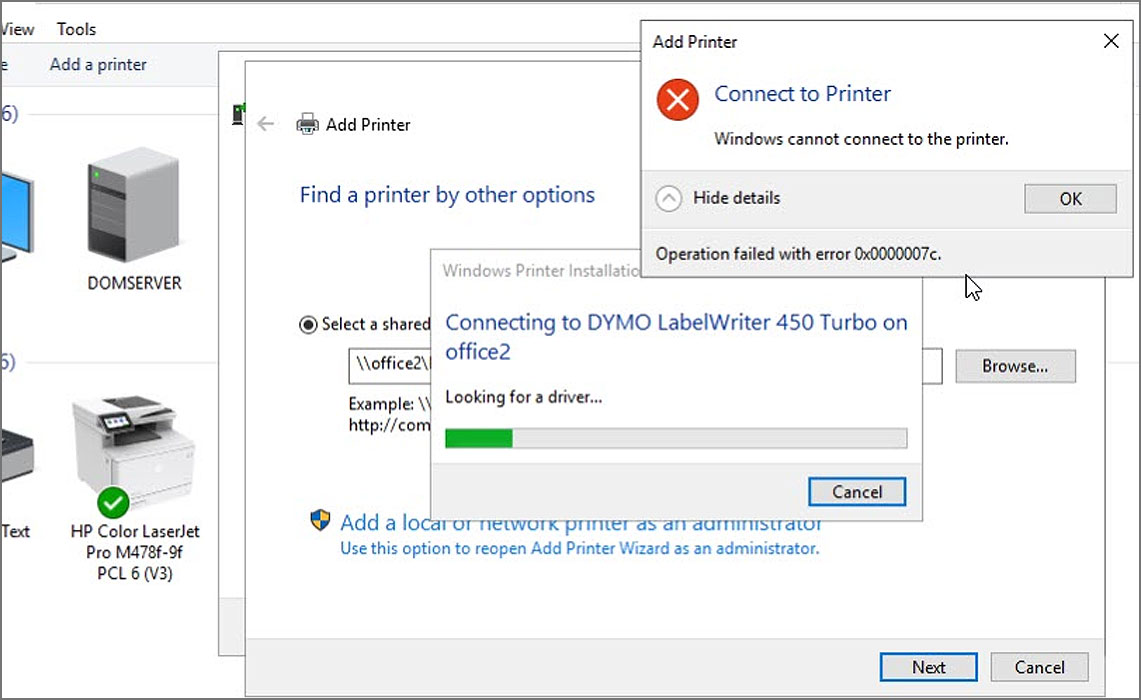
Error messages guide fast Network Printer Troubleshooting when you know what they mean.
- Offline or Not Connected
- Check cable, Wi-Fi, and IP. Restart network devices and assign a static IP if needed.
- Paper Jam or Feed Error
- Inspect the paper path. Remove scraps and realign paper. Clean feed rollers if repeat jams occur.
- Authentication or Permission Denied
- Confirm user access and SMB/IPP authentication settings. Update credentials stored on print servers.
- Printer driver mismatch
- Replace the driver with one that matches the printer model and OS version.
- Print spooler keeps stopping
- Clear the spooler folder, restart the spooler service, and scan for corrupt jobs.
These fixes solve most common errors encountered during Network Printer Troubleshooting.
Tools and commands that make diagnosis easy
Use simple tools to speed Network Printer Troubleshooting.
- Ping and tracert/traceroute
- Check IP reachability and path issues.
- nslookup or dig
- Troubleshoot DNS name resolution for network printers.
- telnet or PowerShell Test-NetConnection
- Test connectivity to printer ports like 9100 or 631.
- Print management consoles
- Monitor queues, drivers, and jobs on print servers.
- Manufacturer utilities
- Use vendor tools for firmware updates and diagnostics.
I use these tools daily. They quickly show whether a problem is network, name, or protocol related.
Preventive maintenance and best practices
Good habits cut down the need for emergency Network Printer Troubleshooting.
- Use static IP or DHCP reservation
- Keeps printer addresses stable and avoids lost connections.
- Schedule firmware and driver updates
- Apply updates in maintenance windows to reduce surprises.
- Keep a spare network cable and toner
- Saves time when hardware faults appear.
- Document printer settings
- Store login, IP, and admin settings for quick recovery.
- Limit excessive print jobs
- Teach users to cancel large or duplicate jobs to avoid spooler overload.
These practices reduce downtime and make Network Printer Troubleshooting simpler when issues arise.
Advanced fixes and when to call support
Move to advanced steps only after basic checks. If problems persist, escalate.
- Port and protocol checks
- Verify ports 9100, 631, 515 and related services are open and routed.
- Replace network modules
- Some printers use removable NICs that can fail; swapping can confirm hardware faults.
- Capture packets
- Use Wireshark to see protocol errors or malformed traffic that breaks printing.
- Rebuild server queues
- Reinstall print servers or move printers to another server to isolate server-side issues.
- When to call vendor support
- Call when hardware fails, firmware updates brick a device, or warranty service is needed.
Know your limits. Advanced Network Printer Troubleshooting can touch sensitive network and security settings. Escalate when fixes could impact production networks.
Personal experience: lessons learned and practical tips
I once fixed a school network where all printers went offline after a DHCP scope change. The fix was a DHCP reservation and a small firewall rule tweak. That event taught me to document IP settings and always test network changes in a small area first.
Other lessons I learned:
- Always try a simple power cycle first. It solves more than half of real-world cases.
- Keep drivers tested for each OS in the environment. A wrong driver can spread issues fast.
- Communicate with users. A quick status note prevents duplicate tickets and repeated attempts.
These real examples make Network Printer Troubleshooting faster and less stressful.

Related concepts and quick definitions
Understanding terms helps with Network Printer Troubleshooting.
- IPP (Internet Printing Protocol)
- A modern protocol for network printing across networks.
- LPD (Line Printer Daemon)
- An older printing protocol still in use on some systems.
- SMB/CIFS
- File sharing protocol used for Windows network printing.
- Print Spooler
- The service that queues jobs and sends them to the printer.
- DHCP reservation
- A way to give a device the same IP while using DHCP.
Knowing these helps you pick the right troubleshooting path fast.
Benefits and limitations of network printing
Network printers bring clear benefits but also a few limits to consider.
- Benefits
- Shared access, lower device counts, easier centralized management.
- Limitations
- Network dependency, security exposure if misconfigured, and harder physical isolation troubleshooting.
- Balance
- Use proper network segmentation and access control to enjoy benefits while reducing risks.
These trade-offs matter when planning for long-term printer stability.
Network Printer Troubleshooting checklist (summary)
Keep this short checklist handy for quick recovery.
- Power, supplies, and status lights
- Confirm IP and ping printer
- Check driver and clear spooler
- Test from another device
- Review firewall and ports
- Update firmware and drivers
- Document and apply preventive settings
This summary helps you act fast and reduce repeat work.
Frequently Asked Questions of Network Printer Troubleshooting
What is the first thing to check when a network printer stops printing?
Check power, status lights, and paper/toner. Then verify the printer has a valid IP and can be pinged from a workstation.
Why does my printer show offline even when it's on?
The printer may have lost network connectivity or changed its IP. Restart the printer and network gear, and confirm the IP settings.
How do I clear a stuck print job on Windows?
Open the print spooler, stop the service, delete files in the spool folder, and restart the service. Reinstall the printer driver if jobs keep reappearing.
Can firewall settings block network printing?
Yes. Firewalls can block ports used by printing protocols. Allow ports like 9100, 631, or related services for the printer to work.
When should I assign a static IP to a printer?
Assign static IP or a DHCP reservation when printers need stable addresses for users or when they serve shared roles. This prevents address changes that break printing.
How often should I update printer firmware?
Update firmware when a release fixes a documented bug or adds needed features. Schedule updates during low-usage windows to avoid disruption.
Conclusion
Network Printer Troubleshooting is about clear steps, good tools, and solid habits. Start with simple checks, work methodically, and use logs and tests to find the root cause. Apply preventive practices like documented settings and updates to reduce repeat issues. Try the checklist today, share your results, and subscribe or comment with your toughest printer problem so we can solve it together.

