

Fast fixes for Asus Router Troubleshooting: reboot, check cables, update firmware, and reset settings.
I’ve worked with Asus routers for years and have fixed many common problems. This guide on Asus Router Troubleshooting explains causes, clear steps, and smart tips. You will learn simple checks, step-by-step fixes, and advanced diagnostics. I share real examples from hands-on experience so you can act with confidence.

36% off Today’s Exclusive Deals
Limited-time Exclusive Deals. Check current discount on Amazon.
Check Price on Amazon As an Amazon Associate I earn from qualifying purchases.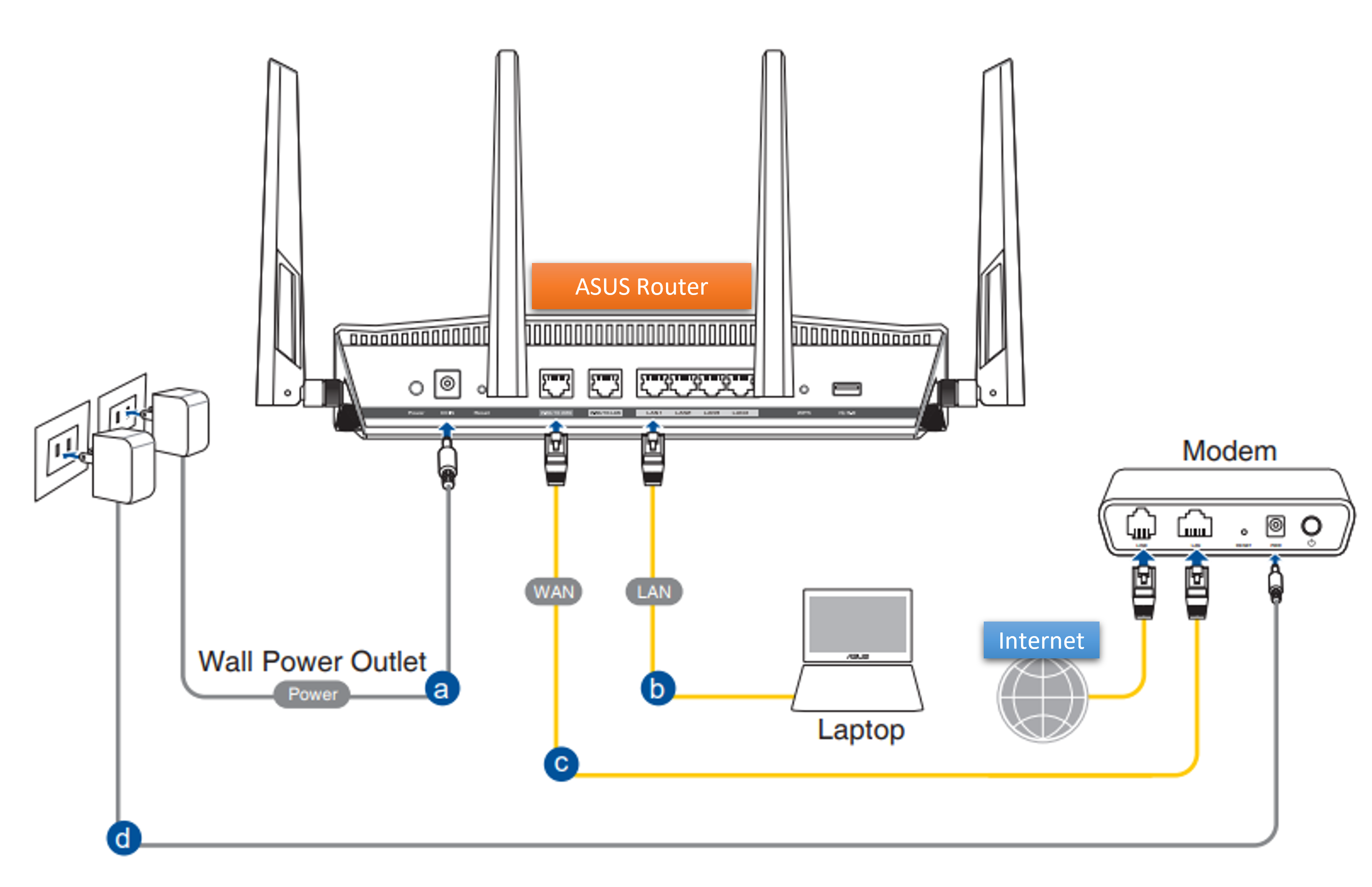
Common Asus Router Problems and Causes
Many people see slow Wi‑Fi, drops, or no internet. These often come from simple issues like bad cables, old firmware, or ISP outages. Other times, Wi‑Fi settings, channel interference, or IP conflicts cause trouble. Hardware faults and overheating are less common but real causes.
Common terms to know:
- Firmware: software that runs the router.
- WAN: the internet port from your modem.
- DHCP: assigns IP addresses to your devices.
- Band steering: moves devices between 2.4 GHz and 5 GHz.
Why this matters: clear definitions help you do Asus Router Troubleshooting fast. When you know the cause, a fix is easier.
Quick Checklist Before Troubleshooting
Start with quick checks. This saves time and avoids unnecessary steps. Follow this short checklist before deep troubleshooting.
Checklist:
- Power and cables: confirm router and modem are powered and cables are snug.
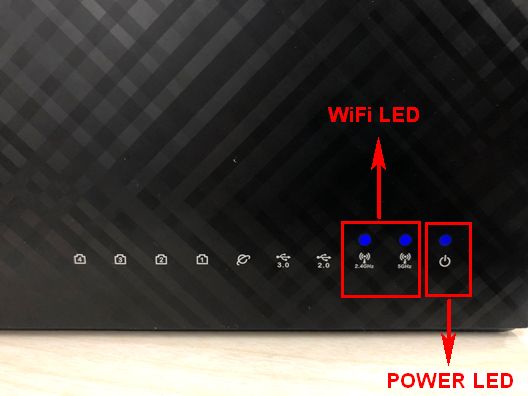
- Lights: note LED colors and patterns on the router.
- ISP status: check if your provider reports outages.
- Device scope: test with one device to isolate the issue.
Run these checks first. Many Asus Router Troubleshooting cases are solved here.

Step-by-step Asus Router Troubleshooting Guide
Follow these steps in order. Each step fixes common causes. Keep notes of changes you make.
- Reboot the router and modem
- Unplug both devices for 30 seconds. Plug modem back first, then router after modem is fully online.
- Reboot clears temporary glitches and many connectivity issues.
- Verify physical connections
- Check WAN cable to modem and LAN cables to devices. Replace damaged cables.
- Use a direct Ethernet test to rule out Wi‑Fi issues.
- Check LED indicators
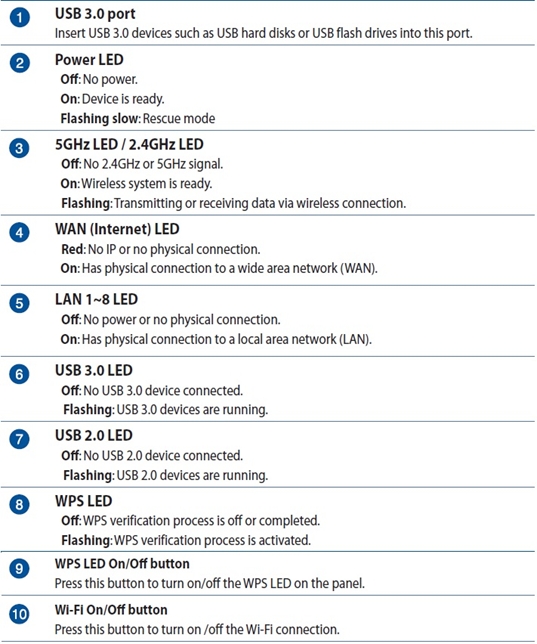
- Power LED solid means normal. Blinking or red may signal errors.
- Refer to your model manual for exact LED meanings.
- Log in to the Asus web UI
- Open a browser and go to 192.168.1.1 or router.asus.com. Use admin credentials.
- Look at System Log and Network Map for errors or blocked devices.
- Update firmware
- Go to Administration > Firmware Upgrade. Download and apply the latest stable firmware.
- Firmware updates fix bugs and improve performance.
- Inspect wireless settings
- Confirm SSID and password are correct. Disable guest network temporarily to test.
- Try separate SSIDs for 2.4 GHz and 5 GHz to test band issues.
- Change Wi‑Fi channel and bandwidth
- Use channel 1, 6, or 11 on 2.4 GHz to reduce overlap.
- Lower 40 MHz to 20 MHz if interference is heavy.
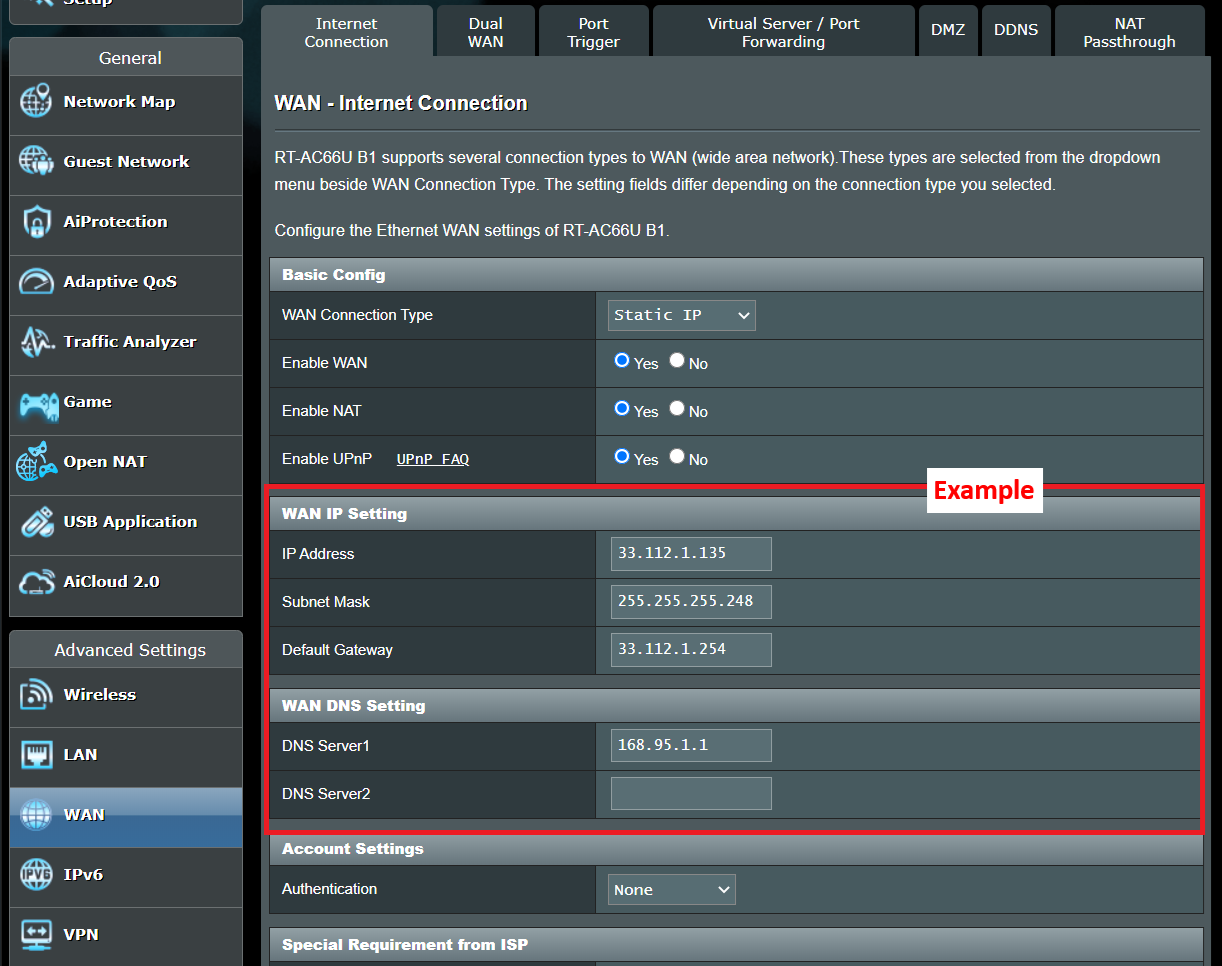
- Check DHCP and IP conflicts
- Ensure DHCP is enabled on the router and IP range has free addresses.
- Static IP collisions often cause devices to lose internet.
- Test NAT and Firewall rules
- Complex firewall settings or strict NAT may block traffic. Temporarily set firewall to default.
- For gaming or servers, verify port forwarding and DMZ settings.
- Reset to default as a last resort
- A soft reset from the UI preserves some settings. Factory reset clears all.
- Backup settings before a full reset to restore later.
I use these steps in this exact order when doing Asus Router Troubleshooting. They solve most problems without stress.
Advanced Troubleshooting and Diagnostics
If basic steps fail, move to advanced checks. These need care but provide deep insight.
Advanced tips:
- Syslog and debug: enable logs to see repeated errors or crashes.
- Ping and traceroute: run tests from a connected PC to the gateway and public servers.
- Telnet/SSH: use secure shell if the firmware supports it to inspect processes.
- Hardware test: test different power adapters and ports in case of bad power or board issues.
Example: I once fixed a mesh drop by finding a faulty power adapter. The router booted but failed under load. Replacing the adapter restored stability.
Limitations: advanced tools can be technical. If unsure, document steps and get help.
Asus AiMesh and Mesh Network Troubleshooting
AiMesh adds complexity. Many issues stem from placement and backhaul choice.
AiMesh tips:
- Place nodes within good range of main router for strong backhaul.
- Prefer Ethernet backhaul when possible for stability.
- Update firmware on all nodes to the same version.
- Recreate mesh if a node shows "Disconnected" repeatedly.
Real example: I had slow roaming because two nodes used different firmware. Syncing firmware solved it instantly.
Performance Tuning and Best Practices
Tune settings to improve speed and range. Small changes can help noticeably.
Tuning steps:
- Enable QoS to prioritize critical traffic like video calls.
- Turn off unused features such as WPS when not needed.
- Use client limit settings sparingly to avoid blocking devices.
- Place router high and central. Avoid thick walls and metal obstructions.
Keep firmware current. That is one of the best Asus Router Troubleshooting and performance practices.

Common Mistakes to Avoid
Some actions make problems worse. Avoid these pitfalls.
Mistakes:
- Changing many settings at once without testing.
- Skipping backups before factory reset.
- Using beta firmware on a critical network.
- Ignoring ISP or modem problems and blaming the router.
From my experience, backing up config and changing one thing at a time saves hours.
When to Contact Support or Replace the Router
Know when to escalate. Some issues need professional help.
Consider support or replacement if:
- The router reboots randomly after firmware updates.
- LEDs indicate hardware failure repeatedly.
- No factory reset restores basic functionality.
- The router is old and lacks security updates.
If you call support, provide logs, firmware version, and a summary of steps you tried. This speeds up help.

People Also Ask (PAA-style)
Q: How do I reset an Asus router to factory settings?
A: Press and hold the reset button for about 10 seconds until LEDs blink, or use Administration > Restore/Save in the web UI. Back up settings first.
Q: Why does my Asus router keep disconnecting devices?
A: Causes include interference, outdated firmware, or IP conflicts. Check logs, update firmware, and test with Ethernet.
Q: Can firmware updates fix slow Wi‑Fi?
A: Yes. Firmware often includes performance fixes and security patches that can resolve slow Wi‑Fi and stability issues.
Q: Is it safe to use Asus AiMesh with different router models?
A: It can work but use models with similar CPU and firmware versions for best compatibility. Mixing very old and new models may cause problems.
Q: How do I check if my ISP is the issue?
A: Connect a device directly to the modem via Ethernet. If the internet is still down, contact your ISP. If it works, the router likely needs troubleshooting.
Frequently Asked Questions of Asus Router Troubleshooting
How do I update my Asus router firmware?
Log into the router UI and go to Administration > Firmware Upgrade. Select "Check" to download and install the latest stable firmware, then reboot the router.
What does a flashing red LED mean?
A flashing red LED often indicates boot or hardware failure. Check the manual for your model and try power cycling; if it persists, contact support.
How can I fix poor Wi‑Fi coverage?
Move the router to a central, elevated spot, reduce interference, and consider adding AiMesh nodes or a wired access point. Also check antenna orientation if applicable.
Why do devices show "limited connectivity"?
This usually means no DHCP lease or gateway issues. Reboot devices, verify router DHCP is enabled, and check the WAN connection to the modem.
Should I use 2.4 GHz or 5 GHz for best performance?
Use 5 GHz for speed and short range devices, and 2.4 GHz for longer range or older devices. Split SSIDs to test which band works best for each device.
How do I factory reset without losing everything?
Backup your current config first via Administration > Save/Restore. After reset, restore the backup if needed, but be cautious as some issues can return with old settings.
Can VPN cause slow speeds on Asus routers?
Yes, a router VPN can slow traffic due to encryption and CPU load. Use a client-side VPN or a router with hardware acceleration for VPN to reduce impact.
Conclusion
You now have a clear, practical Asus Router Troubleshooting plan. Start with simple checks, follow the step-by-step guide, and escalate to advanced diagnostics only when needed. Use backups and document changes. Most problems are solvable with patience and method.
Try the checklist today, update firmware, and make one change at a time. If this guide helped, share your result, ask a question, or subscribe for more networking tips.

