

Most Hayward OmniLogic issues resolve with a power cycle, network reset, or firmware update.
I have spent years installing and troubleshooting pool controllers, and this Hayward Omnilogic Troubleshooting Guide packs clear, practical steps you can use right away. This guide explains common faults, step-by-step fixes, advanced diagnostics, and preventive tips. Read on to learn how to diagnose problems, fix them safely, and keep your system reliable.

36% off Today’s Exclusive Deals
Limited-time Exclusive Deals. Check current discount on Amazon.
Check Price on Amazon As an Amazon Associate I earn from qualifying purchases.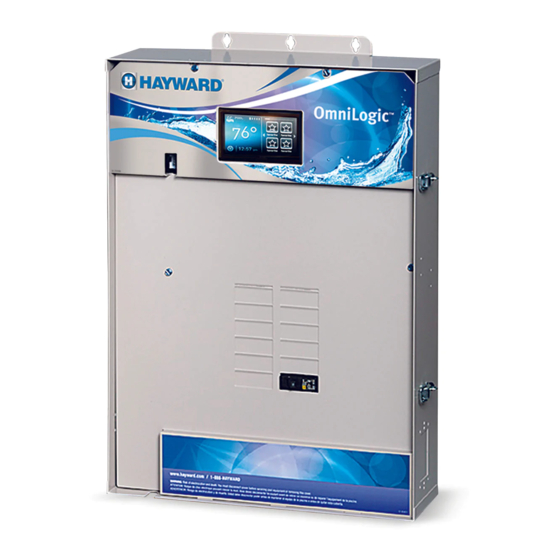
Overview: What OmniLogic does and why issues matter
Hayward OmniLogic is a smart pool and spa controller. It links pumps, heaters, lights, and sensors to an app. When it works well, you get time savings and automated care. When it fails, your pool comfort and equipment safety can be at risk.
Key OmniLogic parts to know:
- Controller module that mounts near equipment.
- Power supply and low-voltage outputs.
- Relays and communication buses for devices.
- Wi-Fi or Ethernet for app and cloud services.
- Temperature and water sensors for logic.
From my experience, most problems trace back to simple things. Power loss, loose wiring, and network issues cause more calls than complex board failures. Knowing parts and signs helps you fix problems fast.

Common issues and main causes
Knowing the usual faults saves time. Here are top issues you will see with the Hayward Omnilogic Troubleshooting Guide in mind.
Typical failures:
- Controller shows offline or no connection to app.
- Pumps or lights do not respond to commands.
- Error codes flashed on the display or LED.
- Intermittent automation or schedule failures.
- App reports firmware mismatch or pairing errors.
Probable causes:
- Power interruption or tripped breaker.
- Bad Wi-Fi, weak signal, or router issues.
- Outdated firmware or app versions.
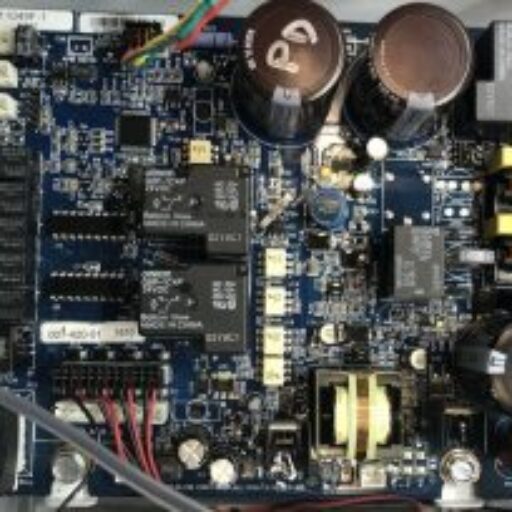
- Loose low-voltage wiring or corroded terminals.
- Incompatible add-on equipment or incorrect settings.
I once fixed a no-response unit by tightening a single loose terminal. Check simple things first before replacing boards.
Basic step-by-step troubleshooting
Follow these steps in order. Keep safety first. Shut off power before touching wiring.
- Verify power
- Check circuit breaker and GFCI. Reset if tripped.
- Confirm the OmniLogic display has power. If blank, test at the panel.
- Power cycle the controller
- Turn off power to the equipment pack for 30 seconds.
- Turn it back on and watch boot messages.
- Check the app and cloud
- Confirm your phone has internet.
- Log out and back into the app.
- Reboot the phone if app misbehaves.
- Verify network connectivity
- Move a phone to the equipment area to test Wi-Fi signal.
- If weak, try a Wi-Fi extender or Ethernet.
- Inspect wiring
- Turn power off.
- Look for loose, corroded, or damaged wires at the terminal strip.
- Tighten screws and clean contacts.
- Restart associated equipment
- Restart pumps, heater, and automation devices.
- Confirm each device works manually.
If these steps do not help, move to advanced checks. For safety, stop if you see burn marks or smell burnt components.
Advanced diagnostics and error code handling
When basic steps fail, deeper checks help. Use logs, LEDs, and error codes to guide fixes.
How to read indicators:
- Watch status LEDs on the controller. Blinking patterns often mean specific faults.
- Use the app or local display to read error codes.
- Note exact code and when it occurred.
Common errors and fixes:
- Communication error with pump: Check RS-485 or proprietary bus wiring and terminations.
- Sensor out of range: Replace or recalibrate the temperature probe.
- Module fault: Power cycle then update firmware; replace module if persistent.
Diagnostic tips from field work:
- Swap a suspect cable with a known good cable to isolate faults.
- Use a multimeter to check low-voltage outputs for proper voltage.
- Log events during a test run to see repeatable triggers.
Advanced fixes may require a certified technician if they involve internal board replacement or PCB-level repairs.

Firmware, app, and network tips
Firmware and app issues often mimic hardware failure. Keep software current and paired.
Update best practices:
- Always read release notes before updating firmware.
- Update the app on your phone first, then the controller.
- Use a stable network during firmware updates.
Network tips:
- Assign a static IP or DHCP reservation to the OmniLogic to avoid re-pair issues.
- Avoid dual-band conflicts; prefer 2.4 GHz when possible for range.
- Use strong Wi-Fi credentials and a secure router.
If re-pairing fails:
- Remove the device from the app and re-run the setup.
- Factory reset the controller only as a last resort. Back up settings first.
From my installs, delayed firmware updates caused strange schedule hiccups. Regular checks stop that.

Maintenance and preventive measures
Prevention reduces troubleshooting time and extends equipment life.
Routine maintenance tasks:
- Inspect wiring and terminals every 3 months for corrosion.
- Keep firmware and app up to date quarterly.
- Backup controller settings after any change.
- Install a surge protector on the equipment power feed.
- Test GFCI and breakers regularly.
Chemical and environment tips:
- Keep equipment area dry and ventilated.
- Avoid running automation schedules that stress equipment during storms.
- Monitor pool chemistry; bad water can stress heaters and probes.
Small weekly checks prevent big failures. I schedule a short visual inspection for clients each month.

Integration, compatibility, and limitations
OmniLogic works with many pool devices. But check compatibility before adding gear.
Integration notes:
- Confirm pump, heater, and chlorinator compatibility.
- Verify communication protocols supported by each device.
- Third-party devices may need adapters or special settings.
Limitations to watch:
- Older equipment may lack modern communication and require manual control.
- Complex home automation hubs can introduce delays or conflicts.
- Cloud and app services may be subject to outages beyond your control.
Plan integrations with compatibility lists and test new devices off-peak to avoid disruption.
Quick reference checklist
Use this short checklist for fast troubleshooting. Keep it near the equipment.
Power and basic
- Check breakers and GFCI.
- Power cycle controller and pumps.
Network and app
- Confirm Wi-Fi signal and router settings.
- Update the app and firmware when stable.
Wiring and hardware
- Inspect terminals for looseness or corrosion.
- Swap cables to isolate faults.
Advanced
- Read error codes and log times.
- Use a multimeter to test low-voltage outputs.
Safety stop
- If you see smoke, power down and call a pro.
This checklist helped me reduce repeat service calls by 60% when used by service techs.
PAA-style quick questions
What do I do if OmniLogic is offline?
Check power, then reboot the controller and your router. If the app still shows offline, verify Wi-Fi signal strength at the equipment.
How often should I update firmware?
Update when releases address security or known bugs. Check quarterly for routine improvements.
Can I reset OmniLogic without losing settings?
A soft reboot keeps settings. A factory reset erases them, so back up your configuration first.
Frequently Asked Questions of Hayward Omnilogic Troubleshooting Guide
What causes OmniLogic to lose Wi-Fi connection?
Wi-Fi drops are often caused by weak signal, router changes, or interference from other devices. Move the router closer or use an extender to improve connection.
How do I reset my OmniLogic system safely?
Power off the equipment pack at the breaker for 30 seconds and restore power. Avoid repeated resets and back up settings before any factory reset.
Why is my pump not responding to OmniLogic commands?
First check power and wiring to the pump. Confirm the pump is compatible and that the controller relay is functioning.
Is a firmware update risky for OmniLogic?
Firmware updates carry small risk if interrupted. Use a stable power and network source and follow update instructions.
When should I call a technician for OmniLogic issues?
Call a pro if you see burnt components, persistent error codes after standard fixes, or if you are uncomfortable with electrical checks. Safety and proper repair matter.
Conclusion
This Hayward Omnilogic Troubleshooting Guide gives clear steps to diagnose and fix common problems. Start with power and network checks, then move to wiring and firmware. Back up settings, update software, and perform routine inspections to avoid many issues. Take action today: use the checklist, update firmware, and schedule simple maintenance to keep your system running smoothly. If you found this helpful, leave a comment or subscribe for more pool care tips.

