

Most Tmobile Home Internet issues resolve with a reset, optimal placement, or signal check.
I’ve spent years helping people fix home internet and I know Tmobile Home Internet Troubleshooting inside out. This guide walks through common causes, easy fixes, advanced checks, and when to escalate. Read on for clear steps, practical tips, and real-life lessons to get your connection stable fast.

36% off Today’s Exclusive Deals
Limited-time Exclusive Deals. Check current discount on Amazon.
Check Price on Amazon As an Amazon Associate I earn from qualifying purchases.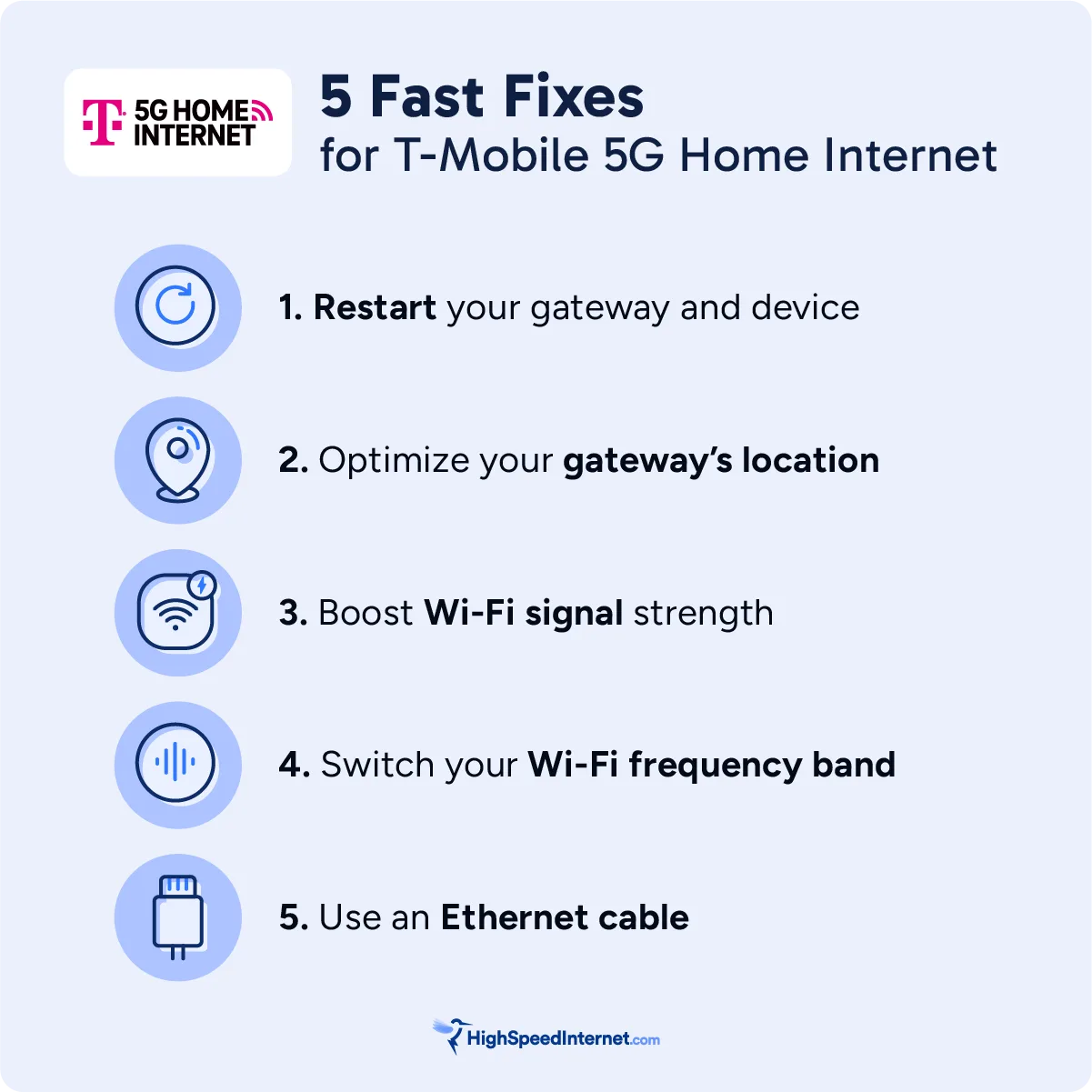
Understanding Tmobile Home Internet Troubleshooting
Tmobile Home Internet Troubleshooting means finding and fixing problems that stop your gateway from giving fast, stable Wi‑Fi. The system uses a 4G/5G signal, a gateway device, and your home network settings. Knowing how these parts work helps you spot if the issue is a weak signal, device problem, or a configuration error.
I have tested gateways in many homes and seen the same root causes. This experience shapes the straightforward checks below. Use this section to form a quick plan before you start deeper fixes.

Common Issues with Tmobile Home Internet
Most problems fit into a few categories. Recognizing the category speeds up Tmobile Home Internet Troubleshooting.
- Signal and reception problems. Weak or fluctuating 4G/5G signal reduces speed and causes drops.
- Gateway hardware problems. Faulty lights, overheating, or failed firmware can break service.
- Local network issues. Device settings, IP conflicts, or bad wiring can block devices.
- Speed and latency complaints. High ping or low download speeds may come from congestion or poor signal.
- App and portal errors. Account or provisioning glitches sometimes stop service activation.
Spotting the right category helps you pick the right fix quickly. I advise starting with signal checks and a gateway reboot for most cases.

Step-by-step Basic Troubleshooting
Follow these simple steps first. They are effective and safe for most Tmobile Home Internet Troubleshooting needs.
- Power cycle the gateway
- Unplug the gateway, wait 30 seconds, then plug it back in. Wait 5 minutes for full startup.
- Check LED indicators
- Note which lights are solid, blinking, or off. They tell you if the gateway has signal, is booting, or has errors.
- Verify placement
- Move the gateway near a window or higher shelf. Avoid metal cabinets and cordless phones.
- Run a speed test
- Use a wired device and the speed test app to measure baseline speeds. Record results to compare.
- Reboot connected devices
- Restart phones, laptops, and smart devices to clear local errors and IP conflicts.
- Confirm account and service status
- Use the app or web portal to ensure your line is active and provisioning is complete.
These steps solve many issues and prepare you for advanced checks. Keep notes on what you tried to speed up support calls if needed.

Advanced Troubleshooting and Diagnostics
When basics fail, deeper checks help find hidden faults during Tmobile Home Internet Troubleshooting. Work methodically and test after each change.
- Check signal strength and bands
- Log into the gateway admin page and check signal metrics like RSRP, RSRQ, and SINR. Low values indicate poor reception.
- Test different gateway locations
- Try moving the gateway to different rooms and re-check signal. Small moves can produce big gains.
- Inspect the gateway logs
- Error logs show repeated failures, firmware issues, or authentication errors. Screenshot key log entries.
- Update firmware
- Ensure the gateway runs the latest firmware. Updates often fix stability and throughput bugs.
- Use ethernet to isolate Wi‑Fi problems
- If wired speed is good but Wi‑Fi is slow, focus on channel, SSID, or device interference settings.
- Factory reset as last resort
- Back up settings and only reset after other steps. Reprovisioning can clear persistent faults.
When you run these tests, document results. This makes escalation faster and more productive if you contact support for further Tmobile Home Internet Troubleshooting.

Tools and Tests to Run
Good tools make Tmobile Home Internet Troubleshooting quicker and more accurate. Use a mix of apps and basic commands.
- Speed test apps
- Run tests on wired and wireless devices. Compare multiple servers and times of day.
- Ping and traceroute
- Ping your gateway, then a public server. Traceroute shows where latency or packet loss starts.
- Gateway admin interface
- Check connected devices, logs, and signal metrics. This is the primary diagnostic hub.
- Wi‑Fi analyzer apps
- Find channel congestion and nearby networks. Move to a less crowded channel if needed.
- SIM and provisioning checks
- Reseat the SIM if applicable. Ensure provisioning status is active in the account portal.
I often run a wired speed test first, then ping and traceroute. That order quickly separates local Wi‑Fi problems from carrier or routing issues.

Tips to Improve Performance and Range
Small changes can yield big improvements for Tmobile Home Internet Troubleshooting. Try these practical, low-cost moves.
- Optimize gateway placement
- Put the gateway near a center of living space and high off the floor. Avoid metal, concrete, and microwaves.
- Reduce interference
- Move cordless phones and baby monitors away. Change Wi‑Fi channel to reduce overlap with neighbors.
- Use wired connections for critical devices
- Ethernet gives the most stable speeds for gaming and streaming.
- Consider a mesh or access point
- If layout causes dead zones, add mesh nodes or a wired access point.
- Keep firmware and devices updated
- Regular updates fix bugs and improve stability.
From my experience, moving a gateway three feet toward a window often fixes slowdowns. Try small placement changes before buying new hardware.

When to Contact Tmobile Support
Knowing when to escalate saves time and frustration during Tmobile Home Internet Troubleshooting. Collect info first and call or chat with clear evidence.
- Call support if you see no signal or consistent outages after reboot and placement tests.
- Provide documented test results: speed tests, ping/traceroute outputs, and gateway logs.
- Ask for a ticket number and escalation if automated fixes fail.
- Request an advanced technician or replacement gateway if logs show hardware faults.
Telling support what you already tried helps them skip basics and focus on network-side fixes or device replacement. Keep a calm, concise summary ready.

PAA-style Quick Questions
These short answers reflect common search phrases and help fast decisions for Tmobile Home Internet Troubleshooting.
How do I reset my Tmobile home gateway?
Power off the gateway, wait 30 seconds, and power it back on. If needed, use the admin page for a soft reboot or a factory reset as a last step.
Why is my Tmobile internet slow at night?
Evening slowdowns often mean network congestion. Try speed tests at different times and contact support if speeds stay low off-peak.
Can my gateway lose signal during storms?
Yes. Heavy rain and storms can weaken 4G/5G signals and cause temporary outages. Check signal metrics and wait for weather to clear.
Will a SIM reseat fix provisioning issues?
Reseating the SIM can fix loose contacts or minor provisioning glitches. Do this only after powering off the gateway and documenting any error lights.
Is wired faster than Wi‑Fi for Tmobile Home Internet?
Yes. Wired connections avoid Wi‑Fi interference and usually deliver higher, more stable speeds for critical devices.

Frequently Asked Questions of Tmobile Home Internet Troubleshooting
What is the first thing I should try for Tmobile Home Internet Troubleshooting?
Restart the gateway and run a wired speed test. Move the gateway to a better location and check LED status.
How do I check signal strength on my gateway?
Log into the gateway admin or use the T‑Mobile app to view signal metrics like RSRP, RSRQ, and SINR. Low numbers show reception problems.
My speeds are inconsistent. What should I test?
Run repeated speed tests at different times and wired vs wireless tests. Also run ping and traceroute to find latency or routing issues.
When should I request a replacement gateway?
Ask for replacement if logs show hardware faults, random reboots, or if a factory reset and firmware update don’t help. Support can confirm via provisioning.
Can I use my own router with Tmobile Home Internet?
Yes, you can use your own router behind the gateway in bridge mode if supported. Confirm settings with support to avoid double NAT.
How long does provisioning take after a reset?
Provisioning usually completes within minutes but can take up to a few hours in some cases. Monitor the gateway and app for status updates.
Conclusion
Tmobile Home Internet Troubleshooting is a clear process of checking signal, rebooting, isolating Wi‑Fi from wired issues, and escalating with solid data. Start with simple steps, document what you test, and only move to advanced checks or support when needed. Try the steps here, note what changes, and share your results with support for faster resolution. If this guide helped, subscribe, leave a comment, or run the checks now and post your findings for feedback.

