

Most Fios Internet Troubleshooting steps fix issues by rebooting devices and checking fiber connections.
I have spent years helping friends and clients solve Fios Internet Troubleshooting problems. I know how the network, the ONT, the router, and home wiring work together. This guide walks you through clear, easy steps. You will learn simple fixes, advanced checks, tools to use, and when to call Verizon. Read on to get your Fios connection stable and fast.

36% off Today’s Exclusive Deals
Limited-time Exclusive Deals. Check current discount on Amazon.
Check Price on Amazon As an Amazon Associate I earn from qualifying purchases.
Understanding Fios Internet Troubleshooting
Fios Internet Troubleshooting means finding and fixing problems with fiber optic service from Verizon. Common issues include slow speeds, drops, or no connection. The path from fiber line to your device has many parts that can fail. Knowing each part helps you pinpoint the issue faster.
Key elements in Fios troubleshooting
- Optical network terminal (ONT) converts fiber to Ethernet for your home.
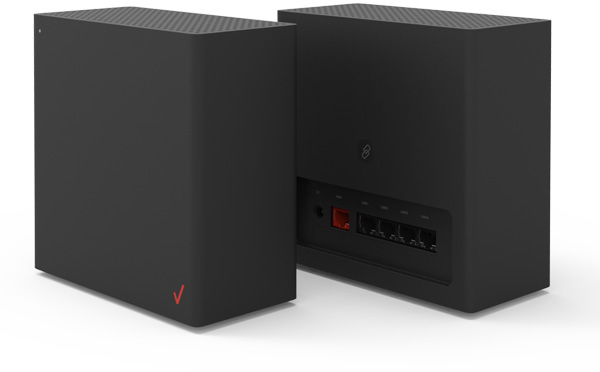
- Router or gateway distributes Wi‑Fi and wired connections.
- Home wiring and Ethernet cables link rooms to the gateway.
- Devices and apps may also create perceived internet problems.
Why troubleshooting is different for Fios
- Fiber delivers high speeds and low latency but needs proper ONT and clean connections.
- Many problems are local (home network) rather than the fiber line itself.
- Fios hardware and VLAN settings can behave differently than cable or DSL gear.

Basic Fios Internet Troubleshooting checklist
Start simple. Many issues clear with a few quick checks. Follow these steps in order.
- Reboot devices
- Power off the router or gateway for 30 seconds, then power on.
- Restart the ONT if you have access or follow Verizon guidance.
- Check lights and status
- Verify ONT and gateway lights show normal status and link up.
- Note any red or blinking lights for later reporting.
- Test a wired connection
- Plug a laptop into the gateway with an Ethernet cable to bypass Wi‑Fi.
- If wired works, the issue is likely Wi‑Fi or wireless settings.
- Run a speed test
- Test on wired and wireless devices. Compare to your plan speed.
- Inspect cables and ports
- Swap Ethernet cables to rule out a bad cable.
- Try a different LAN port on the gateway.
- Check for outages
- Use the Verizon app or outage page to confirm area issues.
- Power cycle client devices
- Restart phones, tablets, smart TVs, and game consoles.
These basic steps solve most Fios Internet Troubleshooting scenarios quickly. If problems persist, move to advanced checks.

Advanced Fios Internet Troubleshooting techniques
If basic steps fail, dig deeper into hardware, settings, and signal paths. These checks need a little technical comfort.
ONT and fiber checks
- Inspect the ONT for status lights and error codes.
- Ensure the fiber cable to the ONT is snug and free from damage.
- If the ONT shows errors, note the exact light pattern before contacting support.
Router and gateway configuration
- Confirm firmware is current. Outdated firmware can cause drops.
- Check router logs for repeated errors or device disconnects.
- Review Wi‑Fi channel and band settings to avoid local interference.
Network settings to review
- Use DHCP or static IP issues for devices with no internet. Release and renew IP if needed.
- Test DNS by switching to a public DNS (for example, 1.1.1.1 or 8.8.8.8) and checking page load times.
- Consider toggling IPv6 if a device has trouble with dual-stack networks.
Home wiring and splitter issues
- If you use MoCA or coax adapters, verify connections and signal levels.
- Replace splitters or poorly shielded coax that might degrade service.
Factory reset and configuration restore
- Only perform a factory reset if you have the gateway credentials and a backup of custom settings.
- After reset, reconfigure Wi‑Fi names, passwords, and any port forwarding.
Personal note: I once spent hours on a router that dropped every night. The issue was an old power adapter causing voltage dips. Swapping the adapter fixed it. Small hardware faults can mimic big network issues.
Common Fios problems and targeted fixes
Below are common scenarios with focused steps for Fios Internet Troubleshooting.
Slow speeds
- Test wired speed first. If wired is fast, optimize Wi‑Fi placement and channels.
- Move the router away from thick walls and electronics.
- Upgrade to a dual‑band or tri‑band router for dense device homes.
Frequent disconnects
- Check router logs for device reauth events.
- Replace aging Ethernet cables and test different power outlets.
- Disable advanced features like QoS temporarily to test stability.
No internet but lights show connected
- Power cycle the ONT and router in sequence: ONT first, then gateway.
- Verify PPPoE or login credentials if your setup uses them.
- Try a different device to rule out device-specific issues.
Poor Wi‑Fi in one room
- Use a wired access point or mesh node for that room.
- Test using the same SSID or a dedicated backhaul for mesh systems.
- Avoid placement near microwave ovens, cordless phones, or baby monitors.
TV or streaming issues
- Prioritize streaming device traffic using router settings.
- Clear app cache and test wired connection for the streaming box.
- Check for multicast or IGMP settings on the gateway that may affect IPTV.

Tools and apps for Fios Internet Troubleshooting
Using the right tools speeds diagnosis. These are practical and easy to use.
- Verizon app and gateway dashboard for signal, device list, and reboot.
- Speed test sites and apps to measure latency and throughput.
- Wi‑Fi analyzer apps to see channel use and interference maps.
- Ethernet cable tester for checking wire continuity if you suspect cable faults.
- Ping and traceroute for checking packet loss and routing problems.
How to use these tools effectively
- Run multiple speed tests at different times to spot patterns.
- Use wired tests as a baseline before changing Wi‑Fi settings.
- Save screenshots of errors and logs for support calls.

When to contact Verizon support and what to prepare
Sometimes problems need Verizon intervention. Prepare before calling to speed resolution.
Information to gather
- Your account number and service address.
- Times and frequency of the issue and any error light patterns.
- Results from wired speed tests and examples of affected devices.
- Recent changes in your home network or equipment.
What to ask and expect
- Ask for a line test and ONT status check.
- Request a technician if the ONT or outside fiber shows faults.
- If the issue is internal, get guidance on replacement equipment or supported settings.
Expect transparency
- Verizon can test the line remotely and may schedule an on‑site visit.
- Be ready to follow their step‑by‑step remote troubleshooting.

Preventive maintenance and best practices
Good habits prevent many Fios Internet Troubleshooting cases. Implement these simple tips.
- Keep firmware and apps updated regularly.
- Use surge protection and reliable power sources for networking gear.
- Label and organize cables to avoid accidental unplugging.
- Reboot gateway monthly to clear memory and improve stability.
- Monitor network load and add bandwidth or better hardware when needed.
Long-term tips
- Consider mesh Wi‑Fi for larger homes.
- Use wired connections for gaming and streaming for consistent performance.
- Document network settings and backups after major changes.

Frequently Asked Questions of Fios Internet Troubleshooting
How do I reset my Fios router safely?
Power off the router for 30 seconds and power it back on. If you need a factory reset, follow the router’s manual and back up settings first.
Why is my Fios slow at night?
Congestion from many devices or ISP network peaks can slow speeds. Run a wired speed test to determine if the issue is Wi‑Fi or the service.
What causes intermittent Fios drops?
Common causes are faulty power, bad cables, firmware bugs, or local interference. Check logs, replace suspect hardware, and update firmware.
Can my home wiring affect Fios performance?
Yes. Poor Ethernet, bad splitters, or loose coax can degrade performance. Replace old cables and test connections to isolate the issue.
When should I call a tech for Fios issues?
Call a technician if the ONT shows error lights, a line test fails, or remote troubleshooting can’t restore stable service. Have test results ready to speed the visit.
Conclusion
Fios Internet Troubleshooting becomes simple when you follow a clear process. Start with reboots, test wired connections, use basic tools, then move to advanced checks if needed. Keep logs and test results ready when calling support. Try the steps here to restore stability and speed today. If this helped, share your experience, subscribe for more guides, or leave a comment with your specific issue.

