

Arris Router Troubleshooting: Quick fixes and clear steps to restore your home network fast.
I have worked with home and small-office networks for years, and I know Arris Router Troubleshooting inside out. This guide breaks down practical fixes, step-by-step checks, and real-world tips to get your Arris device stable, secure, and fast. Read on for easy steps, advanced options, and my hands-on advice so you can solve most problems today.

36% off Today’s Exclusive Deals
Limited-time Exclusive Deals. Check current discount on Amazon.
Check Price on Amazon As an Amazon Associate I earn from qualifying purchases.
How to approach Arris Router Troubleshooting
Start simple. A clear process saves time and avoids mistakes. Check power and cables first. Then test the connection, log into the router, and narrow the fault to Wi-Fi, router, or ISP.
Quick checklist for Arris Router Troubleshooting
Use this checklist to find and fix common faults fast.
- Restart the router and modem. Power off for 30 seconds, then power on.
- Inspect power, coax, and Ethernet cables for loose or damaged ends.
- Confirm ISP status and outage alerts.
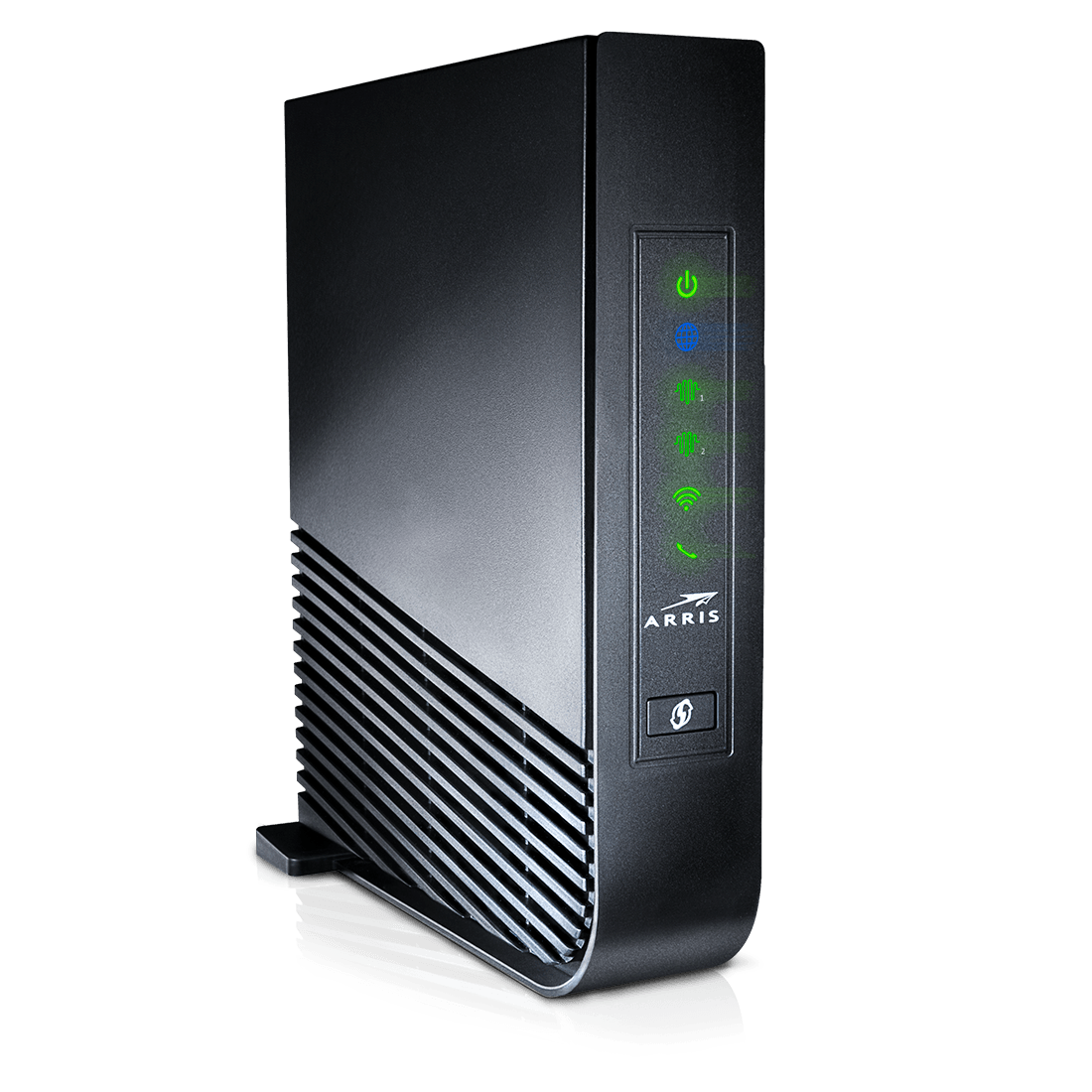
- Check router LEDs and note any unusual patterns.
- Connect a device with Ethernet to test wired connectivity.
Follow these steps before deeper work. They catch 70% of issues I’ve seen in the field.

Common issues and what they mean
Many problems look similar but have different causes. Here are common symptoms and quick interpretations.
- No internet from the router but modem shows online — often router config or DHCP issue.
- Slow Wi-Fi but wired is fine — usually wireless interference or channel congestion.
- Intermittent drops — possible overheating, power supply faults, or ISP signal issues.
- Can’t access 192.168.0.1 or admin page — wrong IP, browser cache, or firewall blocking.
- Router reboots randomly — firmware bugs or failing hardware.
Recognizing the symptom narrows Arris Router Troubleshooting steps quickly.

Step-by-step fixes: Basic to advanced
Follow this ordered sequence for systematic Arris Router Troubleshooting.
- Basic checks
- Power cycle both modem and router.
- Swap cables and try a different Ethernet port.
- Test with a single device to rule out device-specific problems.
- Login and status
- Visit 192.168.0.1 or 192.168.1.1 in a browser. Use the label for default credentials if needed.
- Check WAN status, DHCP leases, and event logs.
- Firmware and settings
- Backup current settings.
- Update firmware using the router’s admin page if a newer version exists.
- Factory reset
- Hold the reset button for 10–15 seconds to restore defaults.
- Reconfigure or restore settings from your backup.
- Advanced diagnostics
- Use ping and tracert to check reachability.
- Check logs for repeated errors or authentication failures.
I often skip straight to logs when simple steps fail. Logs usually point to the root cause.

Wi‑Fi specific Arris Router Troubleshooting
Wireless problems need focused checks. Use these tips to fix slow or unstable Wi‑Fi.
- Place your router in a central, elevated spot away from microwaves and cordless phones.
- Use 5 GHz for short-range high speed and 2.4 GHz for better range.
- Change channels: use channels 1, 6, or 11 on 2.4 GHz to reduce overlap.
- Reduce channel width on crowded networks to improve stability.
- Disable legacy rates if all devices support modern Wi‑Fi standards.
I once fixed a noisy apartment network by switching to a clean 5 GHz channel and cutting interference. The speed doubled for most users.
Security and configuration checks
A secure router is a reliable router. These checks protect your network and simplify troubleshooting.
- Change the default admin username and password immediately.
- Enable WPA2 or WPA3 for Wi‑Fi security.
- Turn off WPS to avoid PIN-based attacks.
- Use a guest network for visitors to isolate devices.
- Keep remote management disabled unless you need it.
Good security reduces weird behavior caused by unauthorized access and keeps configuration changes traceable.

Firmware, updates, and compatibility
Firmware matters. Old firmware can cause drops and compatibility issues.
- Check the router version on the admin page.
- Back up router settings before updating.
- Use firmware from official channels or your ISP’s support site.
- Note that some ISP-provided Arris units only accept ISP-signed firmware.
- After update, test all key functions and reapply custom settings.
If firmware updates are unavailable through the router, call your ISP. They often manage firmware on Arris units issued to customers.

Diagnostics tools and commands
Use basic network tools for fast diagnostics.
- ping — test if a host is reachable.
- tracert (Windows) or traceroute (Mac/Linux) — see hop-by-hop path.
- ipconfig (Windows) or ifconfig/ip (Mac/Linux) — check local IP and gateway.
- nslookup — diagnose DNS problems.
- Router logs — find authentication errors and WAN re-negotiation logs.
These commands help pinpoint whether the fault is local, at the router, or beyond with the ISP.
When to call your ISP or replace the router
Not every problem is user-fixable. Call your ISP or consider hardware replacement when:
- Modem shows poor or inconsistent signal levels.
- Router fails after factory reset or constantly reboots.
- Firmware updates fail repeatedly or are unavailable and problems persist.
- Multiple devices fail on wired and wireless connections but modem is fine.
If hardware age is over five years and issues recur, replacing the router often saves time and improves performance.
Preventive maintenance and best practices
Keep your Arris router healthy with simple preventive steps.
- Restart the router monthly to clear memory and logs.
- Keep firmware current and regularly check for updates.
- Use surge protection and avoid unstable power sources.
- Keep vents clear to prevent overheating.
- Document custom settings and backup before making changes.
Small habits prevent most service calls and keep your network fast.
Personal lessons and real-world tips
From many installs and fixes I learned practical lessons that save time.
- Always try a wired test first. It isolates Wi‑Fi.
- Replace cheap splitters; signal loss causes many intermittent issues.
- Label backups and passwords to avoid being locked out after resets.
- If you rely on an ISP-supplied Arris, note they may restrict advanced settings.
- Keep a small toolkit: spare Ethernet cable, laptop, and a smartphone for quick debugging.
These simple habits cut troubleshooting time and reduce frustration.
People Also Ask — short answers
Why is my Arris router not connecting to the internet?
- Check modem status, cables, and LEDs first. Then log into the Arris admin page to confirm WAN status and DHCP settings.
How do I reset my Arris router safely?
- Hold the reset button for 10–15 seconds to restore factory defaults. Back up settings first to avoid data loss.
Can firmware fixes solve random reboots?
- Yes, firmware often fixes stability issues. Backup settings before updating and follow the router’s update procedure.
Is it okay to use an ISP-provided Arris router with my own modem?
- It depends on compatibility. Some ISP units combine modem and router functions and may not work with third-party hardware without reconfiguration.
How do I improve Arris router Wi‑Fi range?
- Move the router central and high. Use 2.4 GHz for range and 5 GHz for speed. Minimize interference from other electronics.
Frequently Asked Questions of Arris Router Troubleshooting
What do the LED lights on my Arris router mean?
LED lights indicate power, WAN, LAN, and Wi‑Fi status. A steady power light is normal; flashing or red lights can indicate sync issues or failures.
How do I access my Arris router admin page?
Open a browser and go to 192.168.0.1 or 192.168.1.1. Use the default username and password on the router label or the credentials you set.
Will a factory reset fix all problems?
A factory reset clears settings and often fixes software issues. It won’t fix hardware faults or ISP line problems.
Can I update Arris firmware myself?
Yes, via the admin interface if updates are available. For ISP-provided units, updates may be managed by the provider.
How can I tell if the router or modem is at fault?
Connect directly to the modem with a wired device. If the internet works, the router is likely the issue. If it doesn’t, the modem or ISP may be responsible.
Conclusion
Arris Router Troubleshooting works best when you follow a clear, stepwise process. Start with simple checks, use logs and tools to narrow the issue, update firmware carefully, and secure the device to avoid future trouble. Apply the checklist and tips from this guide to resolve most problems quickly. If issues persist after these steps, contact your ISP or consider a hardware replacement. Try the steps today, leave a comment with your problem, or subscribe for more network troubleshooting guides.

