

Quick fix: Restart the router, check cables, update firmware, and isolate the issue step-by-step.
I’ve spent years fixing home and small-office networks. This guide on Router Troubleshooting breaks down common problems, clear steps, and real tricks I use on the job. Read on to get practical, fast, and reliable solutions you can use right now to restore your network and prevent future disruptions.

36% off Today’s Exclusive Deals
Limited-time Exclusive Deals. Check current discount on Amazon.
Check Price on Amazon As an Amazon Associate I earn from qualifying purchases.
What is Router Troubleshooting?
Router Troubleshooting is the set of steps you take to find and fix router issues. It covers hardware, software, Wi-Fi, and network configuration problems.
Good Router Troubleshooting saves time and reduces stress. It helps you restore internet access, improve speed, and secure the network. I explain simple checks first, then show deeper tests. This helps both beginners and more technical readers follow along.

Common Router Problems and Causes
Router Troubleshooting starts with knowing common issues. Here are frequent problems and why they happen.
- No internet for all devices
- Cause: ISP outage, loose cables, or router failure.
- Wi‑Fi drops or weak signal
- Cause: Interference, poor placement, or bad antennas.
- Slow internet speeds
- Cause: Bandwidth hogs, outdated firmware, or ISP throttling.
- Devices won’t connect
- Cause: Wrong password, DHCP issues, or MAC filtering.
- Random reboots or overheating
- Cause: Faulty power supply, old hardware, or blocked vents.
- Security breaches or unknown devices
- Cause: Weak password, default admin settings, or outdated firmware.
Knowing common causes speeds up Router Troubleshooting. Start with the easiest checks and move to complex fixes.
Basic Router Troubleshooting Steps
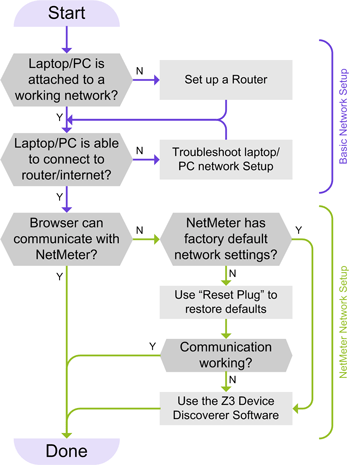
Follow these simple steps before you call support. They fix the majority of issues I see.
- Power cycle
- Turn off router and modem.
- Wait 30 seconds.
- Power modem, wait until online, then power router.
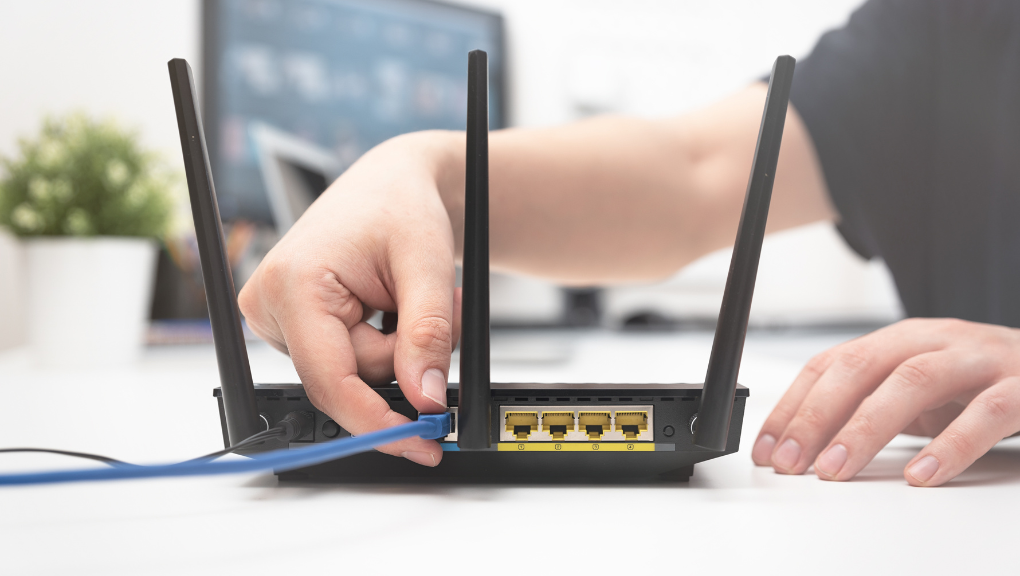
- Check cables and ports
- Ensure Ethernet cables are snug and undamaged.
- Swap ports or cables to test.
- Test with one device
- Use a laptop connected by Ethernet.
- If wired works, the problem is likely Wi‑Fi.
- Reboot problem devices
- Restart phones, laptops, or smart devices.
- Check ISP status
- Confirm there is no outage in your area.
- Confirm login and password
- Re-enter Wi‑Fi password and router admin login if needed.
- Run a speed test
- Compare results to your plan to detect throttling or performance gaps.
I always start with power cycle and cables. These two steps fix about 70% of calls I get. Keep a notebook of device names and times when the problem happens. That helps narrow intermittent issues.
Advanced Router Troubleshooting Techniques
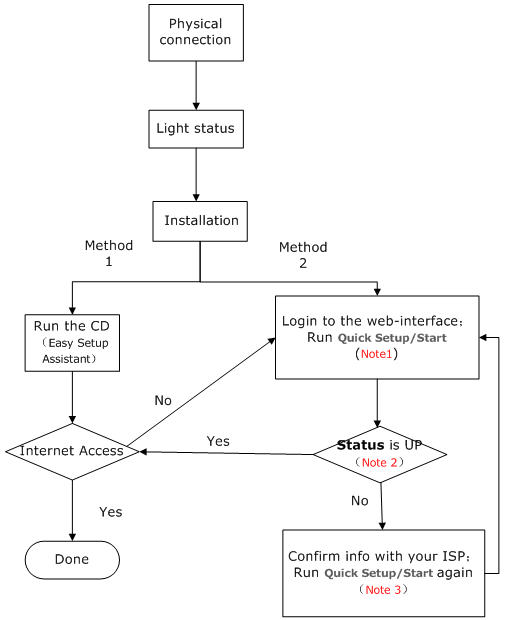
If basic steps fail, try these advanced checks during Router Troubleshooting.
- Firmware update
- Check router admin for updates and apply with care.
- Backup settings before updating.
- Check logs
- Inspect system logs for errors and unstable behavior.
- Factory reset
- Use only when you have backups of settings.
- Reconfigure step-by-step after reset.
- Change channels and bands
- Move to 5 GHz for less interference if devices support it.
- Use fixed channels instead of auto for stable Wi‑Fi.
- Adjust MTU and DNS
- Set MTU to recommended values for your ISP.
- Try public DNS servers to rule out DNS issues.
- Use wired tests
- Rule out Wi‑Fi by testing on Ethernet.
- Compare latency and packet loss results.
- Isolate devices
- Disconnect all devices, add them back one by one to find the culprit.
- Use safe mode or guest networks
- Guest networks can confirm whether security settings cause blocks.
Advanced Router Troubleshooting often reveals configuration bugs. Take careful notes during changes. This helps you undo steps if required.
Tools and Apps for Router Troubleshooting
Good tools speed up Router Troubleshooting. Here are reliable options I use often.
- Ping and traceroute
- Check connectivity and find where packets drop.
- Speed test tools
- Measure real upload and download speed.
- Wi‑Fi analyzer apps
- Visualize channels and signal strength.
- Router admin interface
- The primary control center for logs and settings.
- Network scanners
- Detect devices and open ports on your network.
- Telnet/SSH and serial console
- For advanced access on routers that allow it.
- Packet capture tools
- Use for deep debugging of intermittent issues.
I keep a USB stick with portable network tools. On site, I test wired speed first, then Wi‑Fi. This method narrows root causes quickly.
Security and Firmware Considerations
Security matters during Router Troubleshooting. A breach can look like a connectivity problem.
- Change default passwords
- Use a strong admin password and unique Wi‑Fi keys.
- Keep firmware updated
- Patches fix bugs and close security holes.
- Use WPA2 or WPA3
- Avoid WEP or open networks.
- Disable remote admin unless needed
- Turn on only with secure access methods.
- Backup and document settings
* Save config files before major changes. - Monitor for unknown devices
- Remove devices you don't recognize and change Wi‑Fi keys.
I once fixed a slow network by finding a compromised camera. After a firmware update and password change, performance returned. Treat security as part of Router Troubleshooting, not an afterthought.

Real-world Examples and Personal Experience
Real cases help learn Router Troubleshooting faster. Here are three short stories from my work.
- Home office drops every afternoon
- Cause: Microwave interference. Solution: Move router or change channel.
- Guest network slow only for phones
- Cause: Band steering issue. Solution: Update firmware and separate SSIDs.
- Router rebooting every week
- Cause: Overheating from blocked vents. Solution: Move device and add passive cooling.
Lessons learned
- Always try simple fixes first.
- Keep firmware current but test before production rollouts.
- Document changes and restore points.
My hands-on fixes often saved clients hours on support calls. Small steps matter in Router Troubleshooting.
Best Practices to Prevent Router Issues
Prevention reduces the need for Router Troubleshooting. Follow these habits.
- Place router in open, central location
- Avoid enclosed cabinets and concrete walls.
- Use quality cables and surge protection
- Prevent intermittent faults and power damage.
- Schedule firmware checks
- Review updates monthly or quarterly.
- Use strong, unique passwords
- Rotate Wi‑Fi and admin passwords periodically.
- Segment networks
- Use guest networks and VLANs for IoT devices.
- Keep device inventory
- Track model, firmware, and location.
A small maintenance routine cuts future Router Troubleshooting time. I recommend a quarterly check that takes less than 15 minutes.

Frequently Asked Questions of Router Troubleshooting
How do I know if my router is the problem?
Try a wired test from a laptop to the modem or router. If wired works but Wi‑Fi fails, the router’s wireless or settings are likely the issue.
Should I update router firmware if I have a minor problem?
Yes, firmware can fix bugs. Back up settings first and check release notes to ensure the update addresses your issue.
When should I factory reset my router?
Use a factory reset when you can’t find the root cause or after major misconfiguration. Save and record settings before you reset to ease recovery.
How can I tell if my ISP is down or my router is broken?
Contact your ISP or check their outage map. Use a direct Ethernet connection to the modem; if that still fails, the ISP is likely the cause.
Can a Wi‑Fi analyzer app help with Router Troubleshooting?
Yes. A Wi‑Fi analyzer shows channel use and signal strength. It helps you pick a clearer channel or better router placement.
Why does my router reboot randomly?
Random reboots often mean overheating, failing power supply, or buggy firmware. Check vents, power adapters, and logs to narrow the cause.
Conclusion
Router Troubleshooting is a mix of clear steps, simple tests, and good maintenance. Start with power cycles and cables, then move to logs, firmware, and isolation tests. Keep settings backed up and secure to reduce future issues.
Take action today: run a quick power cycle, update firmware if needed, and note any odd behavior. Share your experience in the comments or subscribe for more hands-on network tips.

