

Nest Thermostat troubleshooting starts with power, wiring, app, and simple reboots.
I’ve spent years fixing smart thermostats and helping homeowners solve HVAC headaches. This guide on Nest Thermostat Troubleshooting pulls together hands-on tips, clear checks, and real fixes you can do today. Read on to learn how to diagnose power issues, fix Wi‑Fi and app problems, interpret error codes, and know when to call a pro. You’ll get step‑by‑step action and simple safety tips so your Nest works reliably.

36% off Today’s Exclusive Deals
Limited-time Exclusive Deals. Check current discount on Amazon.
Check Price on Amazon As an Amazon Associate I earn from qualifying purchases.

How Nest Thermostat Works
The Nest thermostat is a small computer. It senses temperature, talks to your HVAC system, and follows schedules. It uses power from the furnace via a C‑wire or its internal battery. The device also connects to the Nest app over Wi‑Fi for remote control.
Knowing how Nest Thermostat Troubleshooting maps to these parts helps narrow issues fast. If the screen is blank, power is the first suspect. If the app can’t connect, check Wi‑Fi and account settings. When controls fail, wiring or HVAC relay faults are often behind it.
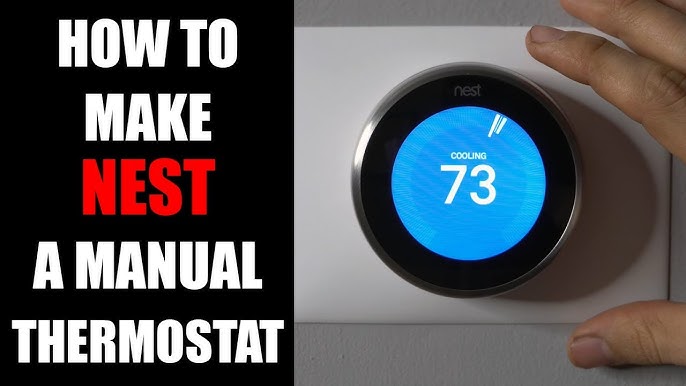
Common Problems and What They Mean
Here are the common failures you’ll see during Nest Thermostat Troubleshooting and what each usually means.
Blank or black display
A blank screen usually means loss of power or a drained internal battery. Check the furnace switch and fuse first. If power is present but the screen stays black, a wiring or battery charging problem could be the cause.
Thermostat shows offline in app
If the Nest app says the device is offline, Wi‑Fi, router, or account issues are likely. Confirm your home network is up and the thermostat is within range. Restart the router and the thermostat as a simple test.
System won’t heat or cool
When the Nest accepts settings but HVAC does nothing, wiring or relay problems are common. Verify the thermostat calls for heat or cool and the furnace or AC responds. The issue may be a tripped breaker or a bad control board.
Battery charging errors or low battery
Nest devices use power stealing or a C‑wire to recharge. If the battery drops, the unit may cycle or shut down. Adding a C‑wire or a power adapter often fixes charging issues.
Short cycling or frequent on/off
Rapid cycling can mean incorrect wiring, a short at the control terminal, or an HVAC safety lockout. It can also stem from a dirty air filter or compressor problems.
Error codes and warning messages
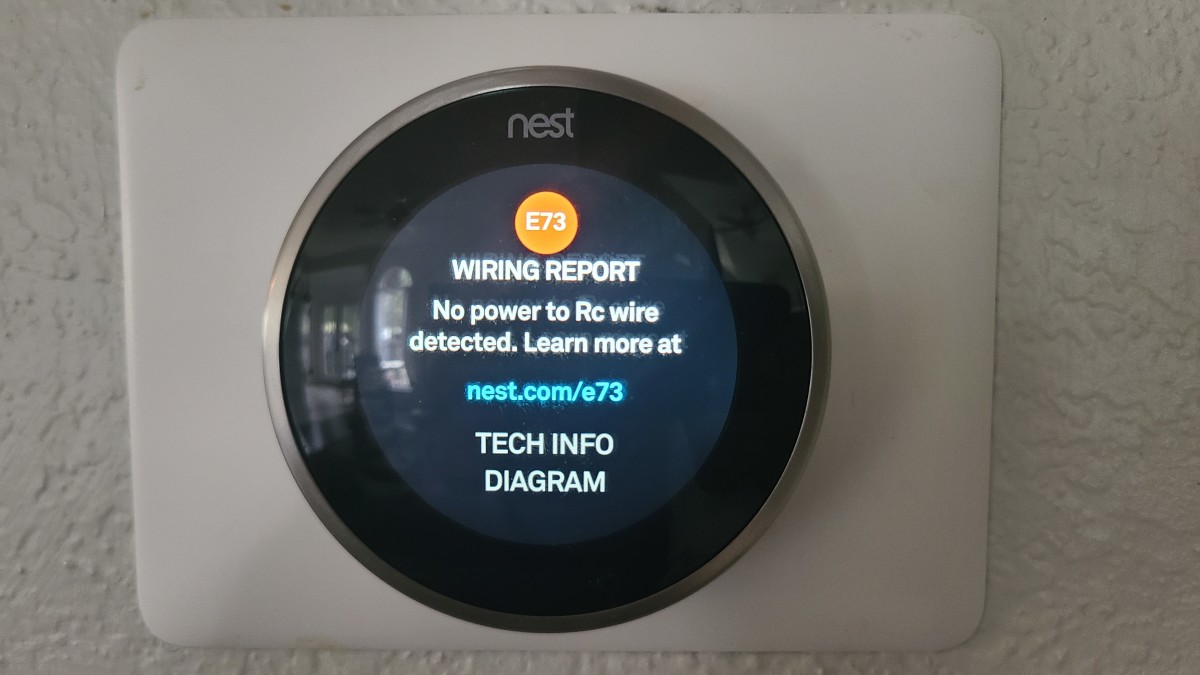
Nest will show codes for specific faults. Common messages point to wiring errors, temperature sensor mismatches, or HVAC equipment compatibility. Note the code; it guides the next steps.
People Also Ask (PAA) — Short Answers
Why does my Nest say no power?
Most often the furnace switch is off or a breaker tripped. Also check the wiring and the C‑wire for loose connections.
How do I reset my Nest thermostat?
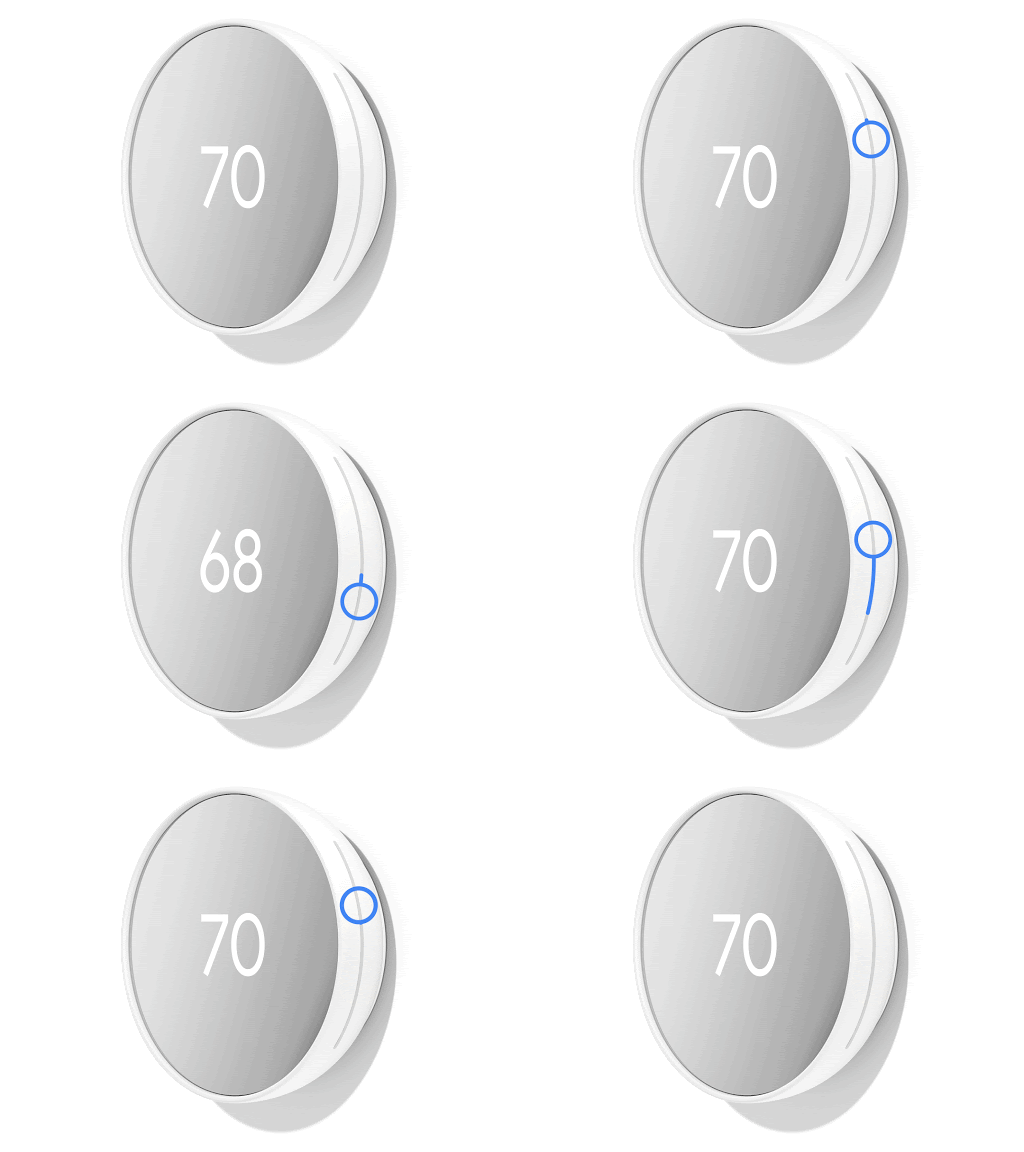
A quick restart via Settings > Reset > Restart can clear many faults. Use factory reset only when you want to erase all settings.
Will Nest work without a C‑wire?
Some Nest models can run without a C‑wire, but battery drain and instability are common. Adding a C‑wire or a Nest power connector improves reliability.
Step-by-Step Troubleshooting Guide
This checklist follows a logical flow. Start with power and safety, then move to connections, app, and system tests.
- Safety first
- Turn off power at the furnace switch before touching wiring.
- Confirm breakers are on and vents are clear.
- Use a screwdriver and voltage tester if you feel comfortable.
- Check basic power
- Look for a blank screen or low battery message.
- Verify the furnace or air handler power switch is on.
- Check the HVAC breaker in the main panel.
- Inspect wiring at the thermostat
- Remove the Nest from its base to view wires.
- Ensure each wire is snug and in the right terminal.
- Look for corrosion, fraying, or loose conductor strands.
- Confirm the C‑wire or charging method
- If no C‑wire, try the Nest power connector or add a dedicated C‑wire.
- Measure voltage between Rc/R and C to ensure 20–30 VAC from the HVAC transformer.
- Restart the thermostat and router
- Restart Nest via Settings > Reset > Restart.
- Power cycle your router and modem.
- Reconnect the thermostat to Wi‑Fi in Settings > Network.
- Test HVAC call
- Use Nest to call for heat or cool.
- Watch the furnace/air handler to see if it starts.
- If HVAC does not respond, test at the control board for 24 VAC when calling.
- Check app and account
- Confirm you’re signed into the correct Nest account.
- Update the Nest app and firmware if available.
- Remove and re‑add the device in the app as a last resort.
- Interpret error messages
- Write down codes or messages.
- Use live chat or support guides for code meanings if unclear.
- Follow targeted fixes (wiring changes, sensor tests, or firmware restore).
I’ve used this order many times. It cuts the worst problems fast. Often a restart or tight wire fixes your issue.
Advanced Fixes and When to Call a Pro
Some problems need deeper work. Use these steps if the basic guide did not help.
-
Replace or add a C‑wire
- Run a new C‑wire from the furnace control board to the thermostat.
- If running new wire is hard, use an adapter kit that works with Nest.
- Ensure the transformer can handle the added load.
-
Check the HVAC control board
- Look at the board when the Nest calls for heat or cool.
- Use a voltmeter to confirm 24 VAC at the R and W/Y terminals.
- A failed board or transformer requires pro replacement.
-
Reinstall firmware or factory reset
- Backup settings if possible.
- Try a firmware update from the Nest app.
- Use factory reset only if corrupt settings prevent operation.
-
Look for HVAC equipment faults
- Dirty filters, blocked vents, or failing capacitors can mimic thermostat faults.
- For compressor or furnace component failures, call HVAC techs.
When to call a pro
- You find 0 VAC at the transformer.
- Wiring is damaged or the control board is burned.
- You smell burning or see signs of electrical damage.
- You are uncomfortable with electrical testing.
From experience, most users can handle wiring checks and restarts. Avoid working on live circuits unless trained. A qualified HVAC technician will diagnose control board or compressor issues safely.
Preventive Maintenance and Best Practices
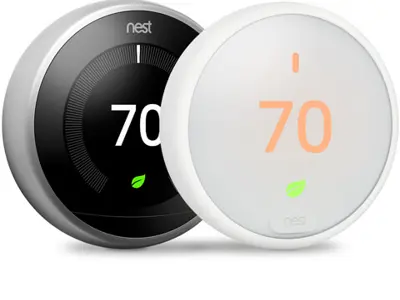
Prevention keeps Nest Thermostat Troubleshooting rare. Follow these tips to avoid repeat issues.
-
Install a proper C‑wire when possible
- It stabilizes power and reduces charging errors.
- It keeps the Nest firmware and Wi‑Fi stable.
-
Keep firmware and app updated
- Updates fix bugs and improve compatibility.
- Check the app weekly for notices.
-
Maintain your HVAC system
- Change filters every 1–3 months.
- Schedule annual tuneups for furnace and AC.
- Clear debris around outdoor units.
-
Place the thermostat correctly
- Avoid direct sun, drafts, or doors.
- Mount on an interior wall at chest height for best readings.
-
Use schedules and safety settings
- Set temperature limits to avoid heavy cycling.
- Enable alerts for extreme temperatures or system faults.
These steps reduce the need for Nest Thermostat Troubleshooting. I share them with clients and homeowners to cut service calls and save money.

Frequently Asked Questions of Nest Thermostat Troubleshooting
How do I know if my Nest has a wiring problem?
If your Nest shows low battery, won’t charge, or shows unfamiliar error codes, wiring is likely. Check that each wire is in the correct port and that connections are tight.
Why won’t my Nest connect to Wi‑Fi after a power outage?
Routers can fail to fully recover after outages, or the Nest may need a restart. Power cycle the router and the thermostat, then reconnect via Settings > Network.
Can I add a C‑wire without running new cable?
Yes. You can use a Nest Power Connector or a C‑wire adapter kit that uses existing wires. These solutions are plug‑and‑play for many homes.
What does it mean when the thermostat keeps restarting?
Repeated restarts usually point to unstable power or firmware errors. Check the C‑wire and transformer voltage, and update or reinstall firmware if needed.
Is a factory reset safe to try?
A factory reset erases schedules and settings but can clear persistent software faults. Back up your settings, then use reset only when simpler fixes fail.
How long does battery replacement take?
For models with user‑replaceable batteries, it takes about 10 minutes. Power down the thermostat, swap the batteries, and restart.
When should I replace my Nest thermostat?
Replace it when repairs cost more than a new unit or when hardware is physically damaged. If the device is several years old and fails frequently, an upgrade is often cheaper long term.
Conclusion
You can solve most Nest Thermostat Troubleshooting issues with careful checks: power, wiring, Wi‑Fi, and firmware. Follow the step‑by‑step guide, keep your system clean, and add a C‑wire if needed. If you hit an electrical or HVAC control fault, call a licensed pro for safety and fast repair. Try the steps here, leave a comment with your symptoms, or subscribe for more smart‑home tips to keep your Nest running smoothly.

