

Use simple resets, check power and connections, update firmware, and verify cellular backhaul.
I have worked with home and small-office cellular devices for years. This Verizon Wireless Network Extender Troubleshooting Guide gives clear steps and real tips to fix slow calls, dropped connections, and setup problems. I explain how the extender works, common causes, step-by-step fixes, advanced checks, and when to call support. Read on to solve problems fast and keep voice and data reliable.

36% off Today’s Exclusive Deals
Limited-time Exclusive Deals. Check current discount on Amazon.
Check Price on Amazon As an Amazon Associate I earn from qualifying purchases.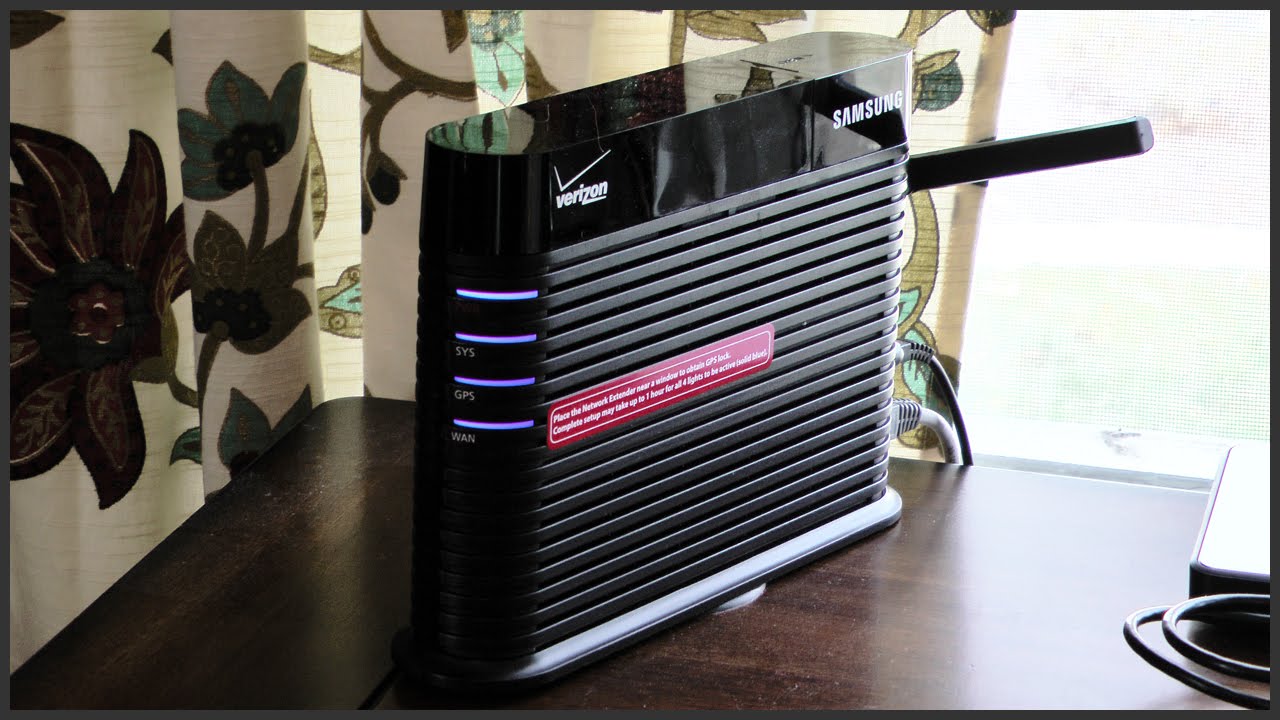
How the Verizon Wireless Network Extender works
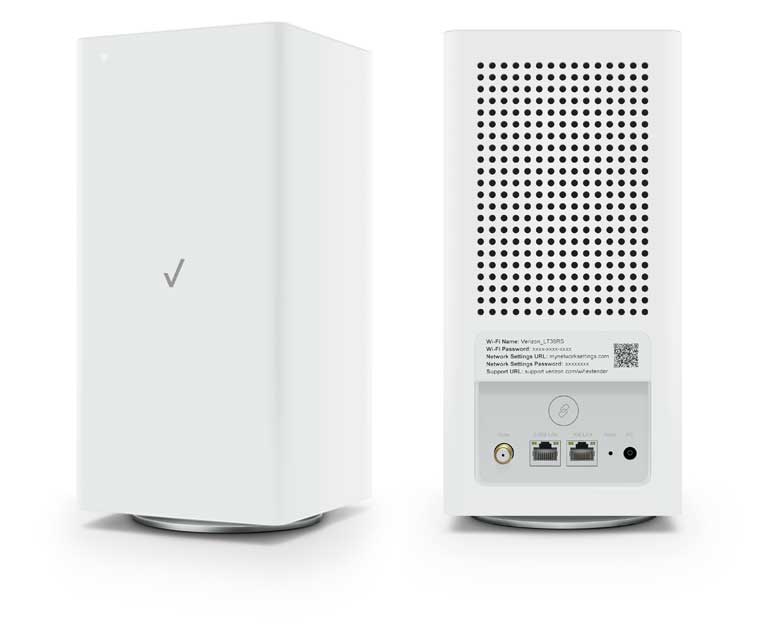
A network extender creates a small cellular signal inside your home or office. It connects to your internet router and acts like a mini cell tower. Calls and text go through the extender to Verizon’s network over your broadband link. This guide shows how to find and fix issues that break that path.
Common problems and likely causes
Most issues fall into a few clear groups. I list them so you can match symptoms to causes quickly.
- No signal inside the house. This often means the extender is offline or not activated.
- Poor call quality or drops. This points to slow internet, high latency, or interference.
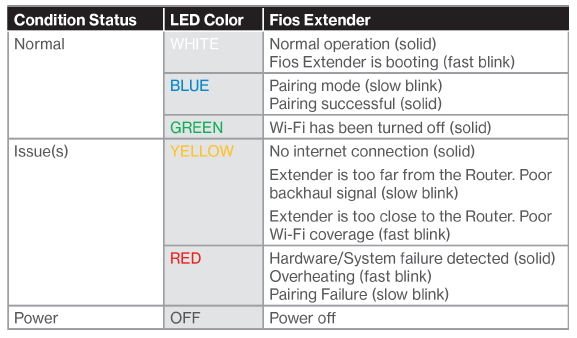
- LED lights show errors. Power, network, or firmware problems can trigger indicators.
- Registration or activation failures. Account settings or serial mismatch can block service.
- Intermittent service. Router settings, NAT types, or ISP changes can cause this.
Step-by-step Verizon Wireless Network Extender Troubleshooting Guide
Follow these simple checks in order. Keep your phone, extender, and router handy.
- Check basics
- Confirm the extender has steady power. The wall light should be stable.
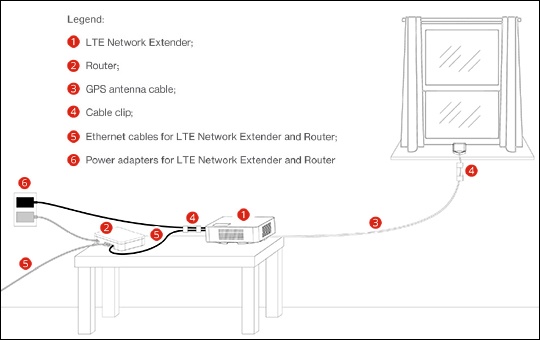
- Make sure the Ethernet cable is securely connected to the extender and router.
- Verify your internet is working by browsing on a laptop near the router.
- Reboot devices
- Power off the extender for 30 seconds, then power it back on.
- Reboot the router if the extender still shows offline.
- Check status lights and messages
- Note the extender LEDs and their colors. Write them down.
- Compare LED states to the user guide to find error types.
- Verify activation and account
- Log in to your Verizon account and confirm the extender is registered.
- If not, use the activation steps in your device paperwork or the My Verizon app.
- Test connectivity
- Run a simple speed test near the router. Look for upload and download consistency.
- Check ping/latency; values over 100 ms can cause poor call quality.
- Adjust router settings
- Ensure the extender gets a DHCP address. If needed, assign a reserved IP.
- Turn off client isolation or AP isolation modes.
- Check for double NAT and port issues
- If the router is behind a modem/router combo, enable bridge mode or set DMZ for the extender.
- Forward required ports if your network blocks SIP or related protocols.
- Firmware and software
- Check if extender firmware shows up as outdated. Update if available.
- Restart after firmware updates.
- Placement and interference test
- Move the extender higher and away from thick walls and microwaves.
- Keep it away from large metal objects and other wireless hubs.
- Factory reset as last resort
- Back up any custom settings. Then perform a factory reset and re-activate.
- Re-run activation steps and test calls after reset.
Advanced checks and diagnostics
If steps above do not help, use these deeper checks. These require some technical comfort.
- Check WAN logs
- Access router logs for dropped packets or DHCP conflicts.
- Look for repeated disconnects timed with extender outages.
- Run traceroute and ping tests
- Ping the extender from a computer to check internal reachability.
- Trace the path to Verizon servers to find latency spikes.
- Verify MTU and QoS
- Ensure MTU is standard 1500 unless your ISP directs otherwise.
- Enable QoS to prioritize voice traffic if supported.
- Confirm SIP and protocol support
- Some extenders use SIP or dedicated tunnels. Ensure the router allows that traffic.
- Replace cables and test alternate ports
- A bad Ethernet cable or port can cause intermittent issues. Swap them to test.
- Check ISP throttling or outages
- Ask your ISP if there are known outages or blocks affecting VoIP-like traffic.
Best placement and network setup tips
Small changes in placement and router setup make big differences.
- Place the extender near the center of the area where you need service.
- Keep the device off the floor and away from thick walls.
- Use a short, good-quality Ethernet cable to the router.
- Avoid connecting the extender through powerline adapters if possible.
- Reserve an IP in your router for the extender to avoid address conflicts.
- Use wired backhaul rather than Wi-Fi backhaul when possible for stability.

When to contact Verizon or replace the device
If you tried the full Verizon Wireless Network Extender Troubleshooting Guide and problems persist, escalate.
- Contact Verizon support when the extender will not register after reset and activation.
- Ask for a replacement if the device shows hardware failure indicators.
- Consider replacing the unit if it’s old and firmware updates stop.
- Log call times, LED colors, and tests performed before you call to speed help.
Quick questions users often ask
What is the most common cause of extender offline?
A power or internet issue is most common. Check power and the Ethernet link first.
Can a modem/router combo interfere?
Yes. Double NAT or disabled bridge mode can block registration. Use bridge mode or set DMZ.
Will firmware updates fix call quality?
They often help. Updates fix bugs and improve stability, but check release notes first.
Frequently Asked Questions of Verizon Wireless Network Extender Troubleshooting Guide
How do I reset my Verizon Network Extender?
Press and hold the reset button for the time listed in the manual. Then reconfigure and activate the device.
Why does my extender show offline but my internet works?
The extender may have lost its tunnel to Verizon or has activation issues. Reboot and confirm account registration.
Can I use Wi-Fi to connect the extender?
Wired Ethernet is recommended. Wi-Fi backhaul can work but is less reliable and may cause drops.
What lights indicate a registration problem?
A red or blinking LED often means registration or activation failure. Check the manual for exact codes.
How long should activation take after reset?
Activation usually completes within 10-30 minutes. If it takes longer, check account settings and contact support.
Will a factory reset erase account settings?
Yes. Reset clears local settings. You will need to re-activate the extender on your Verizon account.
Conclusion
This Verizon Wireless Network Extender Troubleshooting Guide gives clear steps to find and fix common issues. Start with basic checks, then move to router settings, placement, and advanced logs. If problems persist, record tests and contact Verizon for help or replacement. Use these steps to restore reliable calls and messaging quickly. Try the fixes now, leave a comment with your result, or subscribe for more practical guides.

