

Phonak Hearing Aid Troubleshooting is often resolved with cleaning, a simple reset, or rebooting the device.
I have worked with hearing devices for years and seen the full range of common faults and fixes. This guide on Phonak Hearing Aid Troubleshooting explains how the devices work, what typically goes wrong, and step-by-step fixes you can try at home. I combine practical experience, simple diagnostics, and clear repair paths so you can get better sound fast and avoid unnecessary clinic visits. Read on for easy checks, safety tips, and real-world examples that will help you solve issues with confidence.

36% off Today’s Exclusive Deals
Limited-time Exclusive Deals. Check current discount on Amazon.
Check Price on Amazon As an Amazon Associate I earn from qualifying purchases.
How Phonak hearing aids work
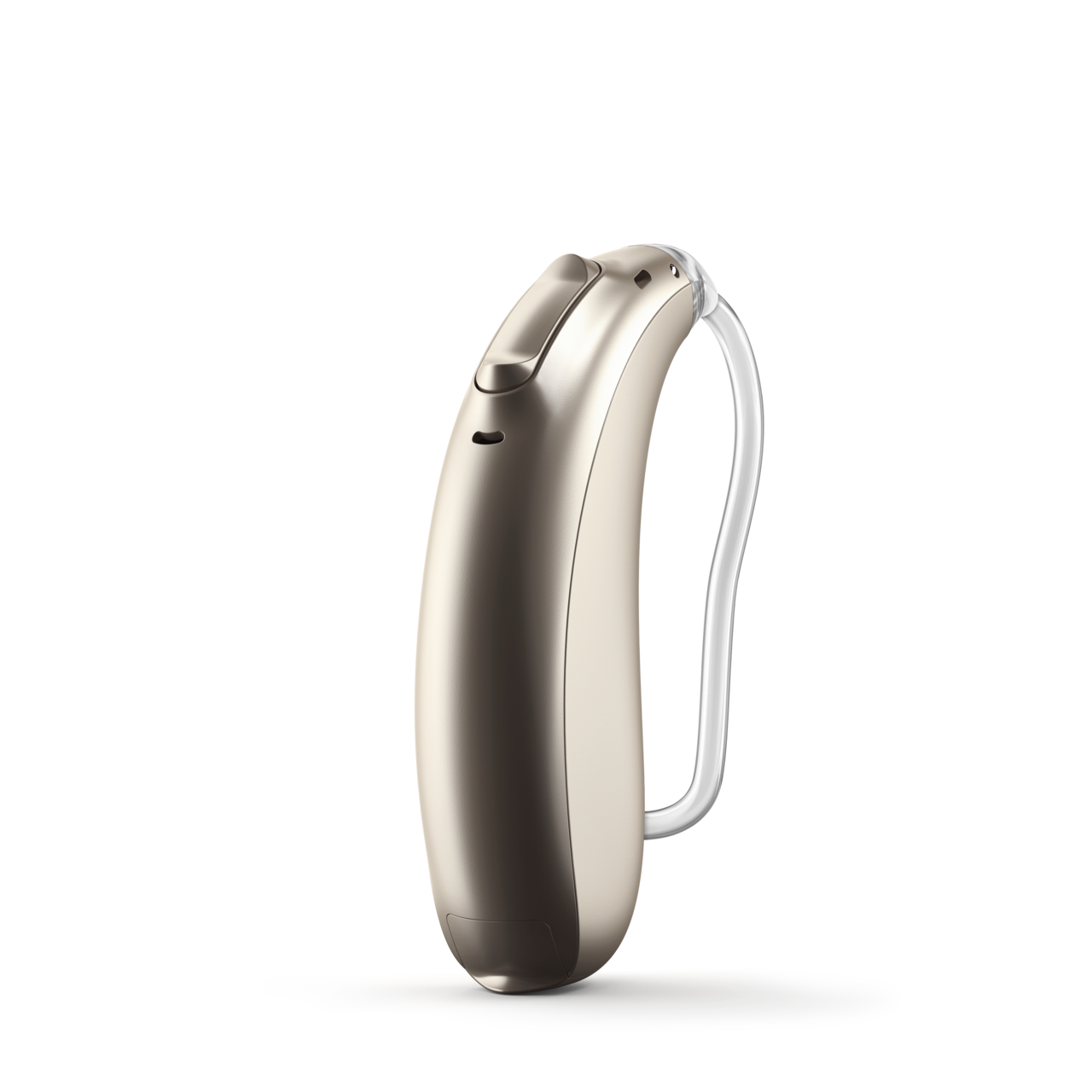
Phonak hearing aids convert sound into digital signals. The signals are processed using presets and algorithms that match your hearing needs. Microphones pick up sound, a processor adjusts volume and clarity, and a receiver sends the sound into your ear. Many models add wireless features, smartphone controls, and firmware updates that improve performance.
Common problems and causes
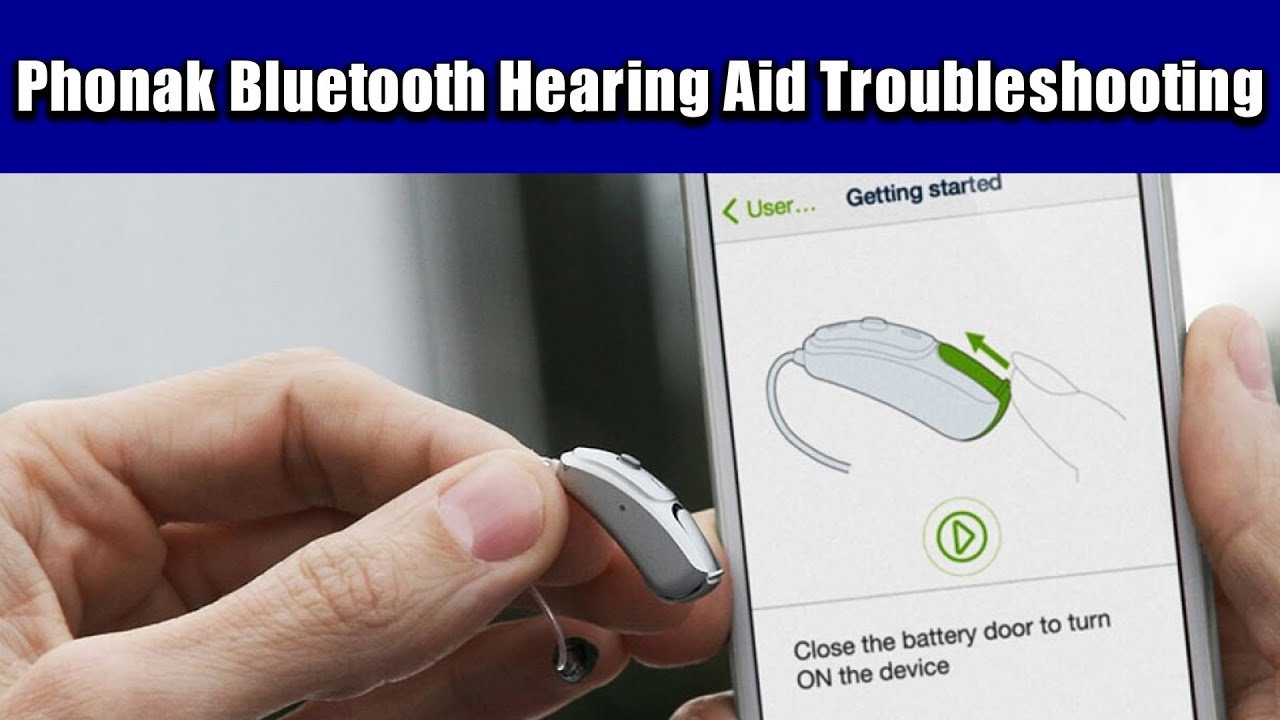
Most users face a small set of recurring issues. Here are the typical symptoms and likely causes.
- No sound or intermittent sound. Often caused by dead batteries, blocked tubing, or moisture in the receiver.
- Weak or distorted sound. This may be due to earwax buildup, settings that are too low, or a damaged receiver.
- Static, buzzing, or feedback. Usually from poor fit, wind noise, or wireless interference.
- Bluetooth pairing or app issues. Causes include outdated firmware, low battery, or app permissions.
- Frequent disconnections. Could be due to distance from paired device, competing wireless signals, or worn microphones.
Understanding these causes helps you narrow down solutions in Phonak Hearing Aid Troubleshooting.
Step-by-step Phonak Hearing Aid Troubleshooting guide
Follow these steps in order. They are simple and safe for home use.
-
Check the battery or charge
- Replace disposable batteries with fresh ones or fully charge rechargeable units.
- Confirm battery door is fully closed for models that use disposable cells.
- If the device still won’t power on, try a spare battery or charging cable.
-
Inspect for blockages
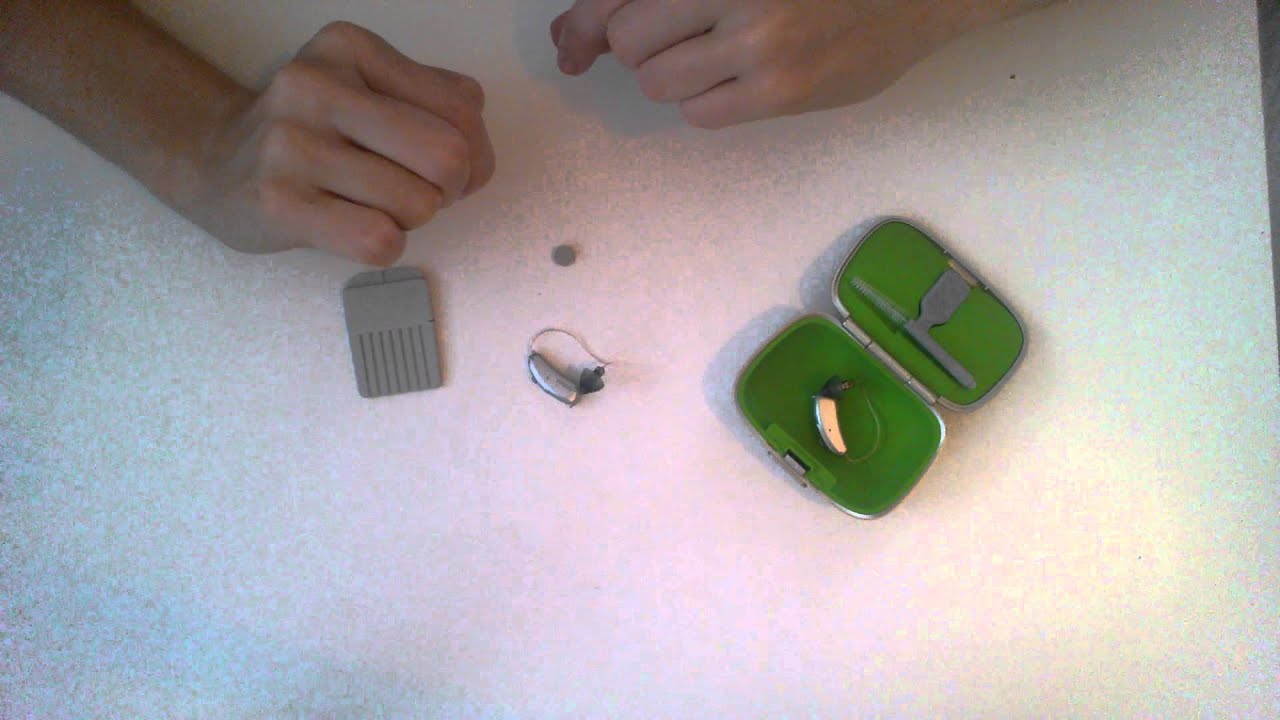
- Look at the sound outlet and receiver for earwax or debris.
- Use a cleaning brush or wire loop designed for Phonak hearing aids.
- Do not insert objects deep into the receiver.
-
Do a soft reset
- Turn the hearing aid off, wait 10 seconds, and turn it back on.
- For rechargeable models, remove from charger then reinsert after a few seconds.
- A reset often clears minor software glitches during Phonak Hearing Aid Troubleshooting.
-
Check program and volume settings
- Cycle through listening programs to ensure you aren’t in a special mode.
- Use the app or manual buttons to raise volume and compare both ears.
- Confirm automatic programs or streaming mode aren’t active.
-
Test without accessories
- Disconnect phone, remote mic, or TV streamer.
- Test the hearing aid alone to isolate accessory problems.
- If sound returns, address the accessory pairing or settings.
-
Verify Bluetooth and app settings
- Make sure Bluetooth is on and the app has permission to pair.
- Update the app if available, and restart your phone.
- Re-pair the hearing aids if the connection is inconsistent.
-
Dry and inspect for moisture
- Use a dry kit or dehumidifier overnight.
- For sudden stops in function after sweating or rain, drying can help restore sound.
- Avoid heat sources; use manufacturer-recommended drying methods.
-
Update firmware and software
- Check the Phonak app for firmware updates.
- Apply updates with the device fully charged and in a stable Wi-Fi area.
- Firmware updates can fix bugs that affect sound or connectivity.
-
Swap parts if available
- Try a spare dome, wax guard, or tubing if you have them.
- Replacing common wear items often resolves distortion and feedback.
- Keep a small kit of parts for quick fixes.
-
Record results and escalate
- Note what you tried and what changed.
- If issues persist, schedule a service visit with your hearing professional.
Repeat these steps during Phonak Hearing Aid Troubleshooting to isolate the exact fault.

Maintenance and preventive care
Good care reduces future problems and extends device life.
- Daily cleaning. Wipe microphones and housings with a soft cloth.
- Weekly deep clean. Remove wax and replace guards or filters.
- Proper storage. Keep charged and in a dry case at night.
- Regular checkups. Visit your audiologist every 6 to 12 months.
- Avoid chemicals. Hair spray and perfume can damage casings and microphones.
A consistent routine cuts down on unexpected repair needs and improves sound quality during Phonak Hearing Aid Troubleshooting.
Advanced troubleshooting and software tips
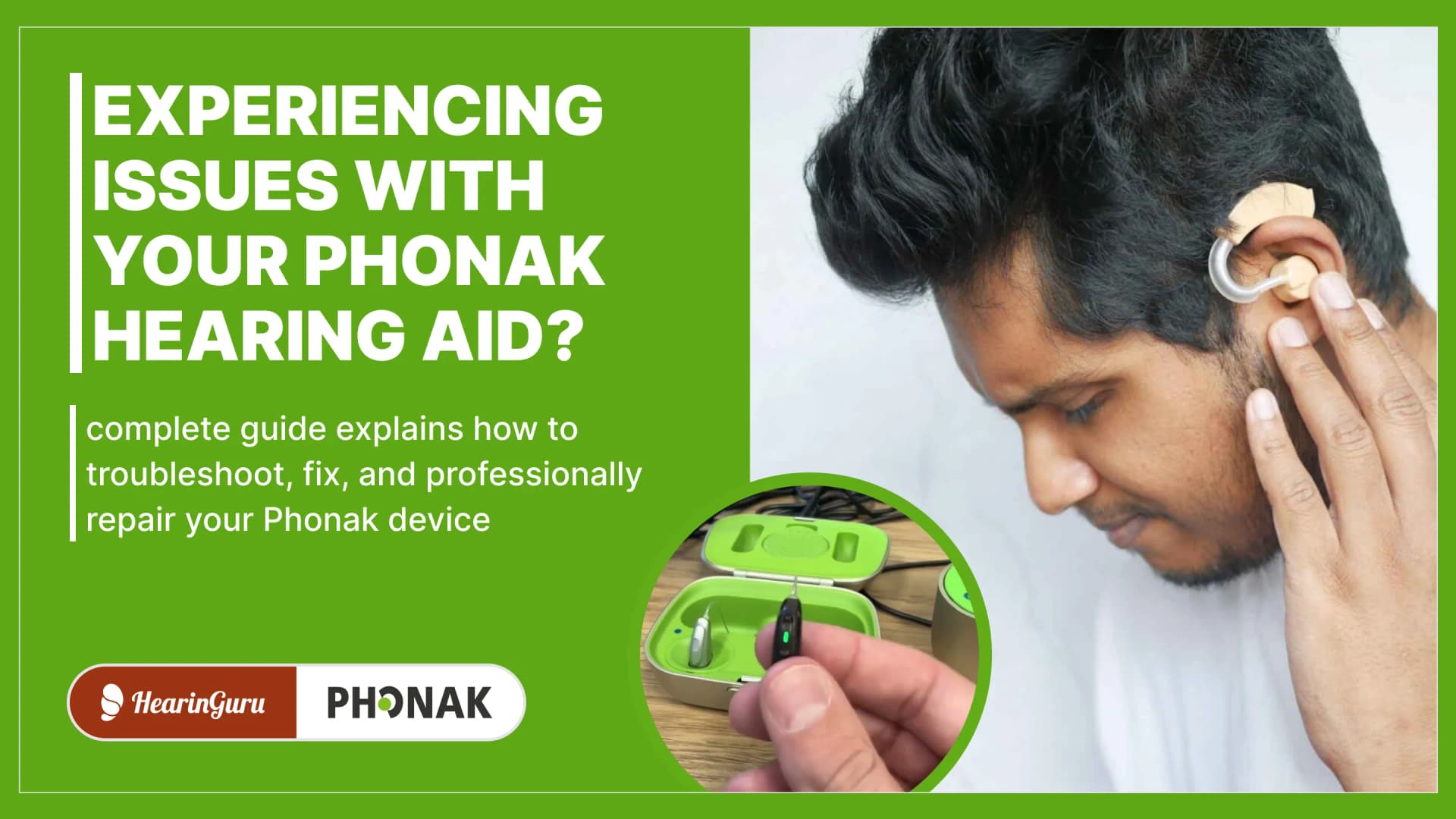
When basic steps fail, try these higher-level checks.
- Use diagnostic modes. The Phonak app can run quick diagnostics and report errors.
- Log errors. Note error codes or unusual app messages for your clinician.
- Bluetooth interference strategies. Turn off other nearby Bluetooth devices while pairing.
- Factory reset. As a last resort, reset to factory settings and reconfigure from scratch.
- Firmware rollback. In rare cases, a recent update may cause issues; a clinician can help roll back firmware.
These advanced methods support deeper Phonak Hearing Aid Troubleshooting and help professionals pinpoint software-level faults.
When to contact a professional
Some problems require expert care. Seek help if you see any of the following.
- Physical damage from drops, crushing, or water submersion.
- Persistent feedback or sudden loss of sound after trying all home fixes.
- Pain, irritation, or infection in the ear canal linked to device use.
- Repeated software failures or error codes reported in the app.
- The device still under warranty needs repair or replacement.
Bring your device, notes on the steps you tried, and any error messages. A clinician can run tests, replace parts, and update firmware safely.

Personal experiences, tips, and lessons learned
From my time fixing hearing aids I learned a few reliable truths.
- Always try a new battery or full charge first. Half of calls are power issues.
- Keep spare wax guards and domes. They fix many cases of muffled sound.
- Document changes. A small log saved me hours during complex sound issues.
- Be careful with DIY fixes that push objects into the receiver. I have seen receivers damaged by aggressive cleaning.
- Build a relationship with a local clinician. Quick clinic adjustments save long waits.
These practical tips come from hands-on experience and make Phonak Hearing Aid Troubleshooting faster and less stressful.

Frequently Asked Questions of Phonak Hearing Aid Troubleshooting
What should I do if my Phonak hearing aid is completely dead?
Replace the battery or fully charge the device first. If it still won’t power on, try a different battery or charger, and contact your clinician if the problem persists.
Why does my Phonak hearing aid sound muffled?
Muffled sound is often earwax or a blocked receiver. Clean the tip and replace wax guards, and dry the device if moisture is suspected.
How do I reset my Phonak hearing aid?
Turn the hearing aid off, wait about 10 seconds, then turn it back on. For persistent issues, try a factory reset via the Phonak app or ask your clinician for help.
Can firmware updates fix Bluetooth problems?
Yes, firmware updates can resolve many connectivity bugs. Update the app and firmware while the device is charged and near a stable Wi-Fi source.
Is moisture damage covered by warranty?
Coverage varies by model and warranty. Contact your clinician or Phonak service to confirm terms and explore repair options.
Conclusion
Phonak Hearing Aid Troubleshooting starts with simple checks: power, cleanliness, and program settings. Use step-by-step diagnostics, maintain a regular care routine, and escalate to professionals when needed. These habits keep devices working well and make fixes faster. Try the easy steps in this guide, keep a small cleaning kit handy, and contact your clinician when problems persist. If this guide helped, subscribe for more practical tips or leave a comment about your experience.

