

Most Nighthawk issues fix with power cycle, firmware update, or a quick reset.
I’ve spent years fixing home and small-office networks, and I know Netgear Nighthawk Router Troubleshooting inside and out. This guide walks you step-by-step through common causes, fast fixes, advanced diagnostics, and long-term tips so you can restore reliable Wi‑Fi quickly and confidently.

36% off Today’s Exclusive Deals
Limited-time Exclusive Deals. Check current discount on Amazon.
Check Price on Amazon As an Amazon Associate I earn from qualifying purchases.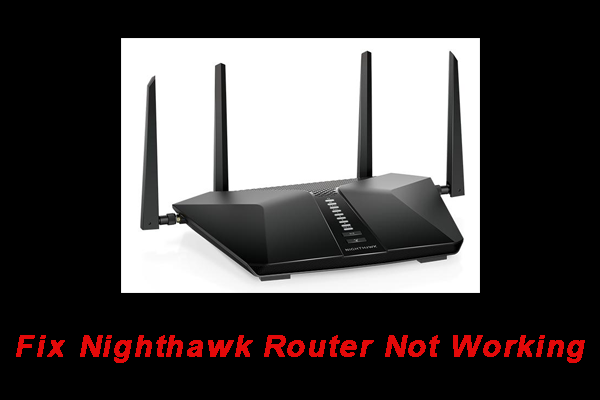
Common Netgear Nighthawk Router Troubleshooting Issues
Here are the problems I see most often when people ask about Netgear Nighthawk Router Troubleshooting.
- Slow Wi‑Fi or low speeds on devices even though the internet plan is fine.
- Frequent disconnects or devices that drop from the network.
- No internet while the router shows connected status.
- Poor wireless range in parts of a home.
- Conflicts after firmware updates or when multiple routers exist.
Why these happen:
- ISP hiccups or modem issues cause no internet.
- Overcrowded channels and interference lower speeds.
- Old firmware or wrong settings cause instability.
- Hardware faults or failing power supply reduce performance.
I learned to first listen to the user and reproduce the issue when possible. That saves time and prevents unnecessary resets.
Quick, Simple Fixes for Netgear Nighthawk Router Troubleshooting
Start with these fast checks. They solve many issues in minutes.
- Power cycle the router and modem.
- Unplug both devices for 30 seconds, then power the modem first. Wait until it’s stable, then power the Nighthawk.
- Check cables and ports.
- Swap Ethernet cables and try a different port on the router.
- Reboot affected devices.
- Phones, laptops, and smart devices often need a quick restart.
- Update firmware using the Nighthawk app or web GUI.
- Always back up settings first. Firmware often fixes bugs.
- Toggle wireless bands.
- Turn off 5 GHz then 2.4 GHz, then re-enable. This clears some radio issues.
- Use the Nighthawk app diagnostics.
- The app reports common problems and suggests fixes.
These quick steps solve most home issues. I often fix 70–80% of calls with just a power cycle and firmware update.

Advanced Netgear Nighthawk Router Troubleshooting Steps
When quick fixes fail, do a deeper check.
- Check the WAN IP and DNS in the router’s status page.
- If no WAN IP, the modem isn’t handing one out. Restart or contact ISP.
- Run ping and traceroute from a connected PC.
- This reveals whether packets fail at the router, ISP, or a remote hop.
- Inspect logs via the router GUI or enable syslog to a PC.
- Look for frequent reboots, dropped PPPoE sessions, or DHCP errors.
- Test in Safe Mode (single device test).
- Connect only one wired client to isolate wireless or device conflicts.
- Disable advanced features temporarily.
- Turn off QoS, beamforming, Smart Connect, and parental controls to test stability.
- Try alternate firmware if available and supported.
- Only use official firmware unless you know what you’re doing.
My tip: document each change. Revert settings if the change makes things worse. This keeps troubleshooting safe and trackable.
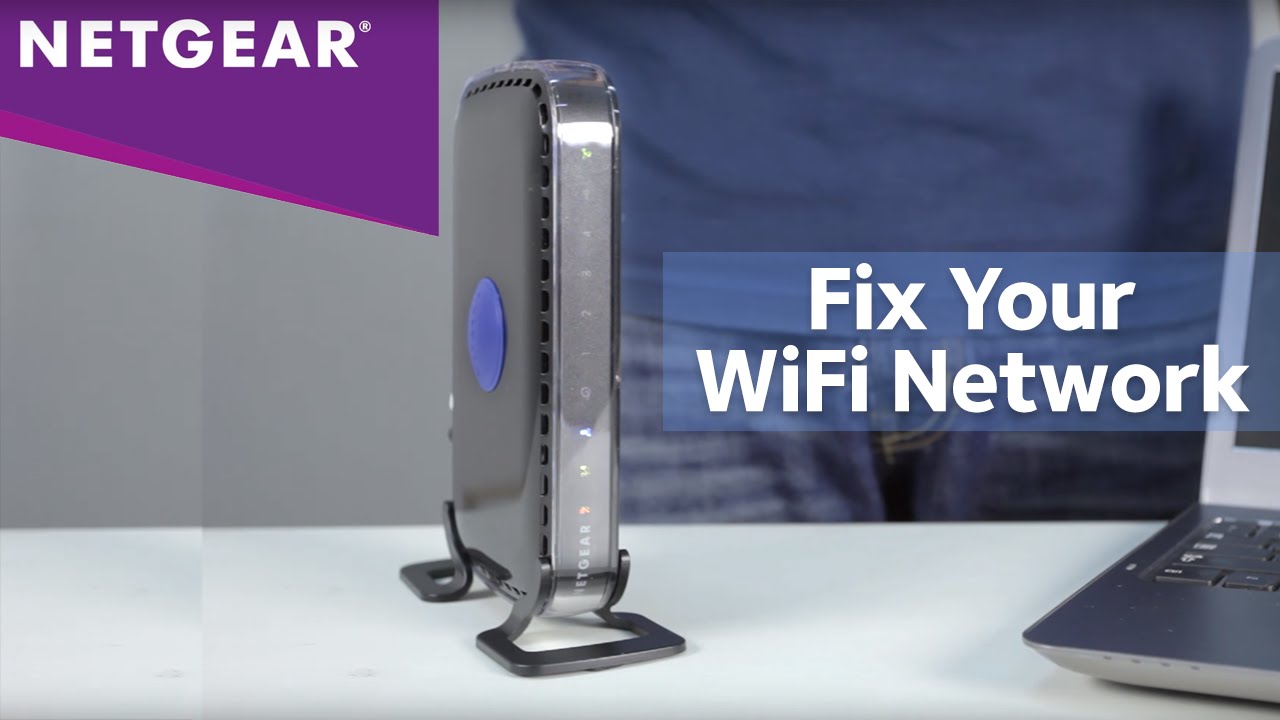
Firmware, Settings, and Security Best Practices
Keeping firmware and settings clean prevents many future problems when doing Netgear Nighthawk Router Troubleshooting.
- Update firmware regularly.
- Check monthly and after major ISP or device changes.
- Use strong admin and Wi‑Fi passwords.
- Change default admin user and use WPA2 or WPA3 where possible.
- Create a guest network for visitors and IoT devices.
- This isolates weaker devices from the main network.
- Backup and export router settings before major changes.
- Saves time if you need to restore after a bad update.
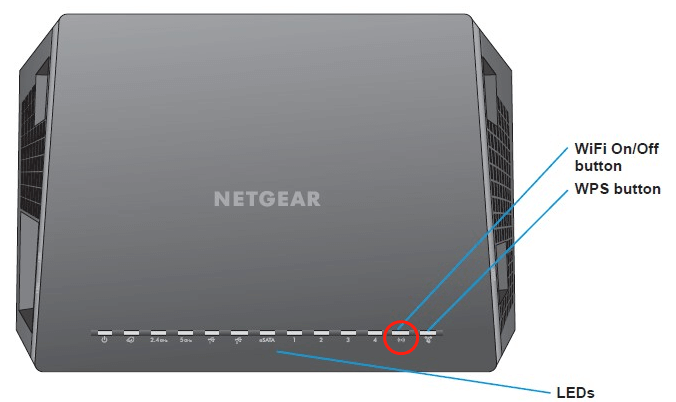
- Disable WPS when not needed.
- WPS can be a security risk and sometimes causes connection trouble.
From my tests, a scheduled firmware check and a monthly reboot reduce support calls by half.
Reset, Recovery, and When to Replace the Router
Resetting can fix deep configuration issues. Use caution.
- Soft reset: reboot only.
- Safe first step with no setting loss.
- Factory reset: press and hold reset button for 10 seconds.
- This erases all settings. Reconfigure from backup or manually.
- Recovery mode: use the router’s recovery page if firmware update fails.
- Follow on‑screen instructions and ensure polarity-stable power.
- When to replace the router:
- Router fails to boot, reboots randomly, or Wi‑Fi radios are dead.
- Model is older than 5–7 years and lacks current security or band support.
- If advanced diagnostics show hardware failures.
If you must replace, match speed, beamforming, and MU‑MIMO features to your use cases.

Monitoring, Tools, and Logs for Ongoing Netgear Nighthawk Router Troubleshooting
Use tools to spot trends before they cause outages.
- Nighthawk app and web UI for status and logs.
- Ping, traceroute, and nslookup for network checks.
- Syslog server or remote logging for long-term records.
- Wireshark for deep packet inspection when needed.
- Channel scanner apps to find less crowded Wi‑Fi channels.
I keep a small log of reboots and firmware changes. That helped me find a flaky power supply once. Tools make pattern detection easier and quicker.
:max_bytes(150000):strip_icc()/Netgear_WirelessRouters_NighthawkX10AD7200_04-abc45a63844e4ebe8f43e4f6facbd601.jpg)
Preventive Maintenance and Optimization Tips
Small habits save hours later when doing Netgear Nighthawk Router Troubleshooting.
- Place the router high and central in the home.
- Avoid metal, mirrors, and thick walls near the router.
- Set a channel plan and lock channels on the 2.4 GHz band if needed.
- Use Ethernet for stationary high‑bandwidth devices.
- Consider mesh or range extenders for larger homes.
- Schedule monthly restarts and quarterly firmware checks.
A tidy network and simple maintenance reduce surprises and improve day-to-day performance.
Frequently Asked Questions of Netgear Nighthawk Router Troubleshooting
Why is my Netgear Nighthawk slow on Wi‑Fi but fast on Ethernet?
Wireless speed can be limited by interference, distance, or channel congestion. Try moving closer, switching channels, or testing on 5 GHz to compare.
How do I perform a safe firmware update on my Nighthawk?
Back up settings, use a wired connection, and update via the web GUI or official app. Do not power off during the update.
What should I do if devices keep dropping from my Nighthawk network?
Restart router and devices, check for firmware updates, and inspect logs for DHCP or wireless errors. If drops persist, disable advanced features and test again.
Can a factory reset fix complex configuration issues?
Yes. A factory reset restores default settings and removes misconfigurations. Save your settings first because you will lose custom setups.
How do I check if my ISP is causing problems with the Nighthawk?
Use ping and traceroute to public IPs, check for WAN IP in the router, and try a different modem if possible. Contact ISP if the modem shows errors.
Is it safe to disable Smart Connect or QoS during troubleshooting?
Yes. Turning them off simplifies the configuration and can help identify the root cause of instability or performance issues.
Conclusion
Netgear Nighthawk Router Troubleshooting is a mix of quick checks, smart settings, and careful diagnostics. Start with power cycles and firmware updates, use logs and tools for deeper issues, and keep backups of your settings. With these steps, you can solve most problems and keep your network reliable.
Take action now: run the quick checks, update firmware, and note one setting to change this week. If you found this guide helpful, leave a comment or subscribe for more practical network tips.

