

Tp Link Router Troubleshooting often starts with a reboot and basic checks for lights, cables, and firmware.
I have spent years fixing home and small-office networks. This guide on Tp Link Router Troubleshooting gives clear steps, real tips, and easy fixes. You will learn how to spot problems, run tests, update firmware, secure your device, and decide when to reset or replace a router. Read on to resolve issues fast and keep your network stable.

36% off Today’s Exclusive Deals
Limited-time Exclusive Deals. Check current discount on Amazon.
Check Price on Amazon As an Amazon Associate I earn from qualifying purchases.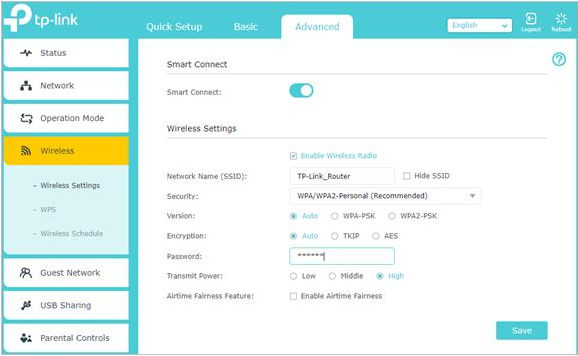
Common Symptoms and Causes of Tp Link Router Troubleshooting
Many problems share the same signs. You may see no internet, slow speeds, frequent drops, weak Wi‑Fi, or devices that fail to connect. These symptoms are the starting point for Tp Link Router Troubleshooting.
Common causes include:
- Loose or damaged cables between modem and router.
- Outdated firmware or corrupted settings.
- Wireless interference from neighbors or appliances.
- ISP outages or modem failures.
- Router overheating or hardware aging.
Real example from my work: a small office had random drops every evening. The router was placed near a microwave. Moving it fixed the drops. That taught me to always check physical placement first.
Step-by-Step Troubleshooting Guide for Tp Link Routers
Follow these steps in order. They solve most issues fast.
-
Basic checks
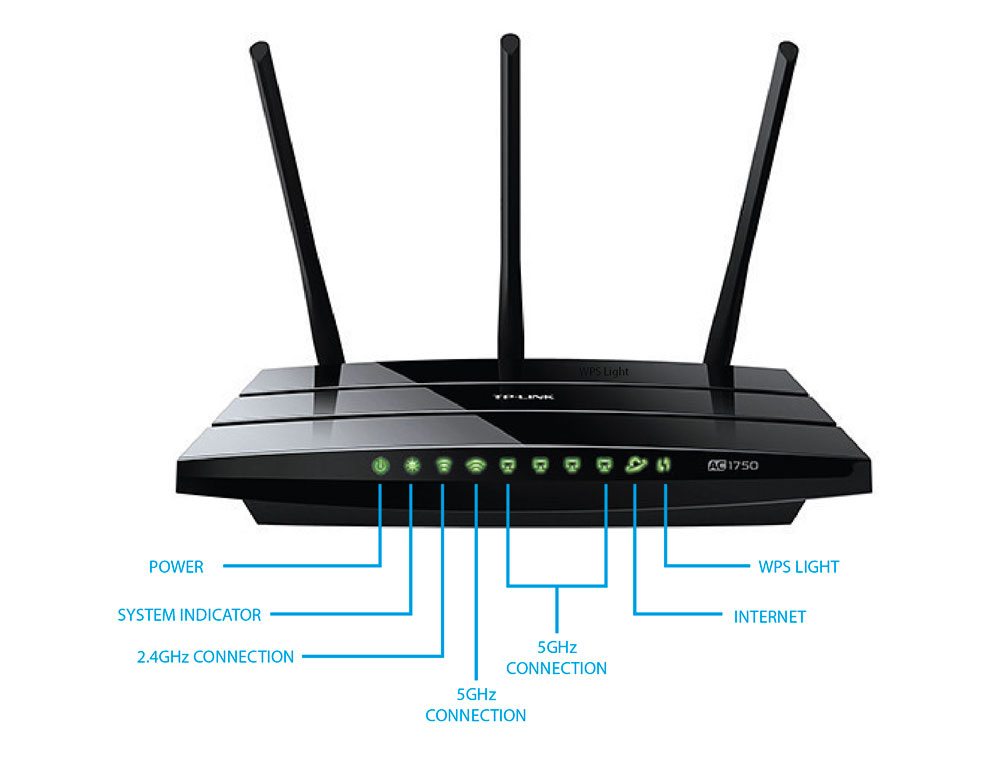
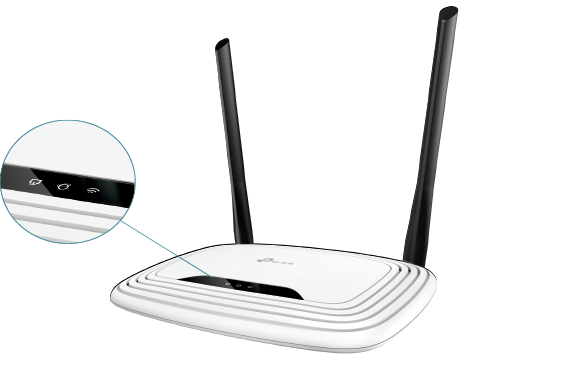
- Confirm power LED is on. Check WAN/Internet light.
- Inspect Ethernet cables for damage and reseat them.
- Restart modem first, then router after 30 seconds.
-
Reboot and power cycle
- Soft reboot via web interface or app.
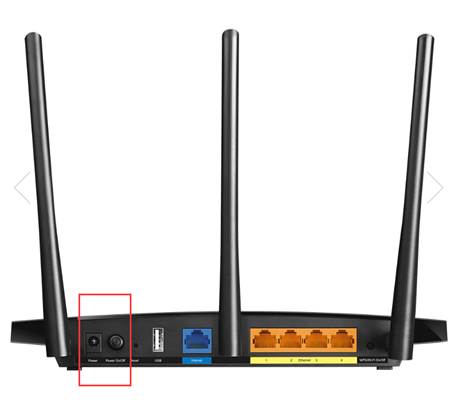
- If that fails, unplug power for 30 seconds and restart.
-
Check internet status
- Log into the router at 192.168.0.1 or 192.168.1.1, or use the Tether app.
- Verify WAN status and connection type (PPPoE, DHCP, static).
-
Firmware update
- Backup settings. Download official firmware matching model and hardware version.
- Upload via web UI and wait. Do not power off during update.
-
Reset and reconfigure
- Try a factory reset only if other steps fail. Hold reset button for 10 seconds.
- Restore settings manually. Avoid restoring old backups that carry faults.
-
Wi‑Fi checks
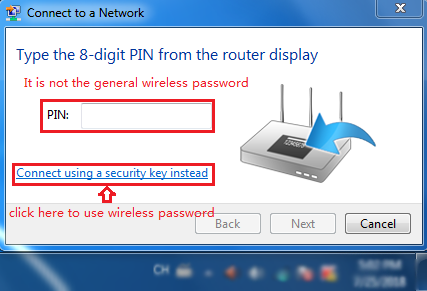
- Confirm SSID and password. Reconnect devices.
- Change channel on 2.4 GHz to 1, 6, or 11 to reduce interference.
- Use 5 GHz for close-range high speed.
-
Diagnose client devices
- Test connectivity with one device wired to router.
- If wired works but Wi‑Fi fails, focus on wireless settings.
-
Check ISP and modem
- Connect a device directly to the modem to confirm the internet feed.
- If direct connection fails, contact your ISP.
-
Advanced checks
- Review router logs in the admin panel.
- Disable VPNs and parental controls temporarily to test.
- Turn off power-saving features on client devices when testing.
My tip: document each change you make. This avoids undoing a setting that fixed another issue.
Tools and Commands to Diagnose Tp Link Router Troubleshooting
Use simple tools to find the root cause.
-
Ping test
- Ping 8.8.8.8 to check internet reachability.
- Ping the router IP to test local network.
-
Traceroute
- Run traceroute (tracert on Windows) to locate where packets stop.
-
Speed tests
- Use a wired device for accurate speed tests.
- Compare results to your plan speed.
-
nslookup or dig
- Check DNS resolution when web pages fail but ping works.
-
Router LED and logs
- Read LED patterns for hardware issues.
- Export logs from the admin page for clues.
-
Mobile apps
- Use the TP‑Link Tether app for quick diagnostics and remote resets.
Example command use: When I saw slow loads, traceroute showed a long delay at the ISP hop. That confirmed an ISP issue, which saved time.

How to Update Firmware and Secure Your Tp Link Router
Keeping firmware current reduces bugs and boosts security. Follow safe steps.
Firmware update steps:
- Note model and hardware version from the device label.
- Backup your current settings from the admin page.
- Download firmware that exactly matches model and version.
- Upload the file via the router’s firmware page.
- Wait until the router reboots and verify settings.
Security checklist:
- Change default admin username and password.
- Use WPA2‑PSK or WPA3 if supported.
- Disable WPS if not needed.
- Turn off remote management unless required.
- Set a separate guest network for visitors.
- Enable automatic firmware updates if available.
Limitations:
- Beta firmware can be unstable. Prefer stable releases.
- Some old models may no longer get updates; plan replacement.
Real caution: I once updated firmware without backing up settings. A customized VLAN config was lost. Always backup first.
When to Reset or Replace Your Tp Link Router
Reset types:
- Soft reset: reboot via UI. Use for minor glitches.
- Factory reset: hold reset for 10 seconds. Use when settings are corrupted.
Reset checklist:
- Backup settings before factory reset.
- Record ISP login info and VLAN settings.
- Reconfigure only the features you need.
When to replace:
- Router is older than 4–5 years and fails updates.
- Hardware shows repeated disconnects or overheating.
- You need new features like Wi‑Fi 6, better range, or mesh support.
- Device fails self-tests or has extensive port damage.
Replacement tip: Choose a model that matches your home size and device count. Bigger homes often need mesh.

Tips to Improve Wi‑Fi Performance and Coverage
Small changes often help a lot.
- Placement
- Put the router high and central. Avoid closets and near metals.
- Antenna direction
- Point external antennas perpendicular for broad coverage.
- Channel choice
- Use 2.4 GHz channels 1, 6, or 11 to prevent overlap.
- Band steer and dual‑band
- Enable band steering to move devices to 5 GHz when possible.
- Mesh and extenders
- Use mesh kits for large or multi‑floor homes.
- Interference reduction
- Keep routers away from microwave ovens and cordless phones.
- QoS settings
- Prioritize video calls or gaming with QoS rules.
From experience: moving a router two feet away from a TV fixed streaming stutter. Small placement moves can yield big gains.
Quick PAA Questions About Tp Link Router Troubleshooting
How do I find my TP‑Link router login?
Check the sticker on your router for the default IP, username, and password. Common IPs are 192.168.0.1 or 192.168.1.1.
Why does my TP‑Link router say limited or no connectivity?
This often means the router can talk to local devices but not to the internet. Check modem link, ISP status, and WAN cable connection.
Can a firmware update fix Wi‑Fi drops?
Yes. Firmware updates often fix bugs that cause drops. Always backup settings before updating.

Frequently Asked Questions of Tp Link Router Troubleshooting
What should I do if my TP‑Link router has no internet light?
First, power cycle your modem and router. If the light stays off, check the WAN cable and contact your ISP to confirm service.
How do I reset my TP‑Link router to factory settings?
Locate the reset button and hold it for about 10 seconds until LEDs blink. After reset, reconfigure the router with your ISP settings.
Why are some devices not connecting to my TP‑Link Wi‑Fi?
This can be due to wrong password, MAC filter enabled, or incompatible Wi‑Fi standards. Verify the SSID/password and check access control settings.
How often should I update my TP‑Link router firmware?
Check for firmware every few months or when you see issues. Security updates are more urgent than feature updates.
Can interference cause slow TP‑Link Wi‑Fi speeds?
Yes, interference from other networks, microwaves, and Bluetooth can reduce speed. Change channels or move the router to reduce interference.
How do I secure my TP‑Link router from hackers?
Change default admin credentials, enable WPA2/WPA3, disable WPS, and keep firmware updated. Also disable remote admin unless you need it.
Conclusion
You now have a clear path for Tp Link Router Troubleshooting. Start with basic checks, follow step‑by‑step diagnostics, use simple tools, and update firmware safely. Backups and careful resets protect your settings. If problems persist, consider replacement or professional help.
Take action today: run the quick checks, update firmware, and secure your router. Share your results or ask a question below to get tailored advice.

