

Reset your modem and router first; check cables, Spectrum outages, and firmware updates.
I’ve spent years fixing home networks and helping friends and clients with Spectrum Router Troubleshooting. This guide breaks down common causes, clear step-by-step fixes, and real-world tips I’ve learned from hands-on work. Read on to get fast, reliable solutions you can try right now and to learn when to call Spectrum or replace gear.

36% off Today’s Exclusive Deals
Limited-time Exclusive Deals. Check current discount on Amazon.
Check Price on Amazon As an Amazon Associate I earn from qualifying purchases.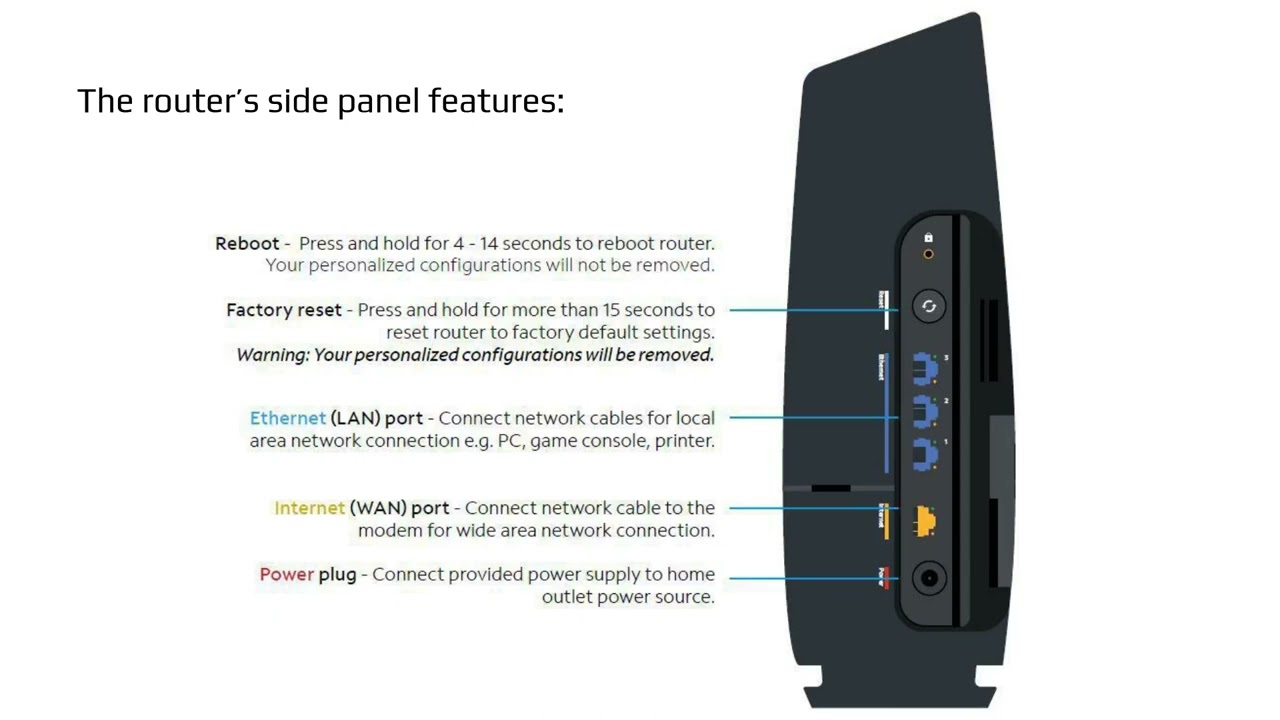
Common Spectrum Router Issues
Many people see the same set of problems with their Spectrum router. Knowing the cause helps you fix issues fast. Common problems include:
- No internet despite router lights being on. This often points to modem or ISP outage issues.
- Slow Wi‑Fi speeds in parts of the house. This can be signal, channel, or interference related.
- Intermittent drops and reconnects. This can come from firmware bugs, overheating, or loose cables.
- Difficulty accessing router settings or login pages. Incorrect IP, wrong password, or firmware limits can block access.
- Wi‑Fi dead zones and weak signals. Placement, walls, and other electronics usually cause this.
From my experience, most Spectrum Router Troubleshooting cases start with a simple power cycle and cable check. If that fails, next steps are usually a router reboot, checking for outages, and testing a wired connection. These basics solve the majority of problems.

Step-by-Step Spectrum Router Troubleshooting Guide
Follow these clear steps. Each step is simple and aimed at narrowing the root cause.
-
Check for outages and account status
- Log into your Spectrum account or check outage maps. Confirm service is active.
- If Spectrum reports an outage, wait for the fix rather than changing router settings.
-
Inspect cables and power
- Ensure coax, Ethernet, and power cables are snug and undamaged.
- Replace visibly frayed cables before deeper troubleshooting.
-
Power cycle modem and router
- Unplug both devices for 60 seconds. Plug the modem in first, wait until lights stabilize, then plug the router.
- Power cycling clears many temporary errors.
-
Test a wired connection
- Connect a laptop via Ethernet to the router or gateway. If wired works but Wi‑Fi does not, focus on wireless settings.
- If wired fails, the issue is likely upstream (modem, line, or ISP).
-
Login to router admin
- Use the gateway IP (often 192.168.0.1 or 192.168.1.1) to access router settings.
- Verify DHCP is enabled, check connected devices, and review logs for errors.
-
Run a speed test
- Use a reliable speed test while wired to the router. Compare results to your plan.
- If speeds are far below your plan, note times and test repeatedly to catch patterns.
-
Change wireless channel and band
- Switch between 2.4 GHz and 5 GHz. Move to a less crowded channel for 2.4 GHz.
- Channel changes reduce interference from neighbors and devices.
-
Update firmware
- Check the router admin page for firmware updates. Apply updates carefully and reboot.
- Firmware can fix stability and security bugs.
-
Factory reset as last resort
- Back up settings first. Use factory reset only after other steps fail.
- Reconfigure SSID, password, and security settings after reset.
-
Test with your own router (if possible)
- If Spectrum provided gateway causes issues, test with a personal router in bridge or gateway mode to isolate the problem.
These steps form the backbone of Spectrum Router Troubleshooting. Repeat tests after each change to isolate which action solved the problem.
Advanced Troubleshooting and Firmware
If basic steps don’t solve the problem, try advanced checks. These require caution and simple technical know-how.
-
Firmware and software
- Keep firmware current. New firmware addresses security and stability.
- If an update causes problems, roll back if the router supports it.
-
DHCP, DNS, and IP conflicts
- Check DHCP range and static IP assignments. IP conflicts can cause drops.
- Try alternate DNS servers (for example, public DNS) to rule out DNS issues.
-
Bridge mode and double NAT
- If you use a Spectrum gateway with a separate router, enable bridge mode to avoid double NAT.
- Double NAT can harm gaming, VPNs, and port forwarding.
-
Signal and channel analysis
- Use simple Wi‑Fi analyzer apps to find crowded channels and signal strength.
- Move to a clearer channel and reposition your router for best coverage.
-
Logging and diagnostics
- Review router logs for repeated errors. Look for power, authentication, or firmware warnings.
- Save logs before contacting support to speed troubleshooting.
-
Heat and hardware health
- Ensure vents are clear and the device isn’t hot. Overheating causes drops and resets.
- If hardware is old, consider replacing it; routers degrade after 3–5 years.
Personal tip: I once traced frequent drops to a router placed above a warm cable modem. Separating the devices and improving airflow fixed the issue.

When to Contact Spectrum Support or Replace Hardware
Knowing when to call Spectrum or swap gear saves time and money.
-
Call Spectrum support if:
- Your modem status lights indicate a signal issue or no upstream/downstream lock.
- There’s an outage reported in your area.
- You see authentication or provisioning errors you can’t fix.
-
Consider replacing hardware if:
- The router frequently overheats or reboots.
- You need features your current gateway lacks, like advanced parental controls, better Wi‑Fi range, or mesh compatibility.
- Your router is older than four years and shows poor performance even after resets and firmware updates.
-
Renting vs owning
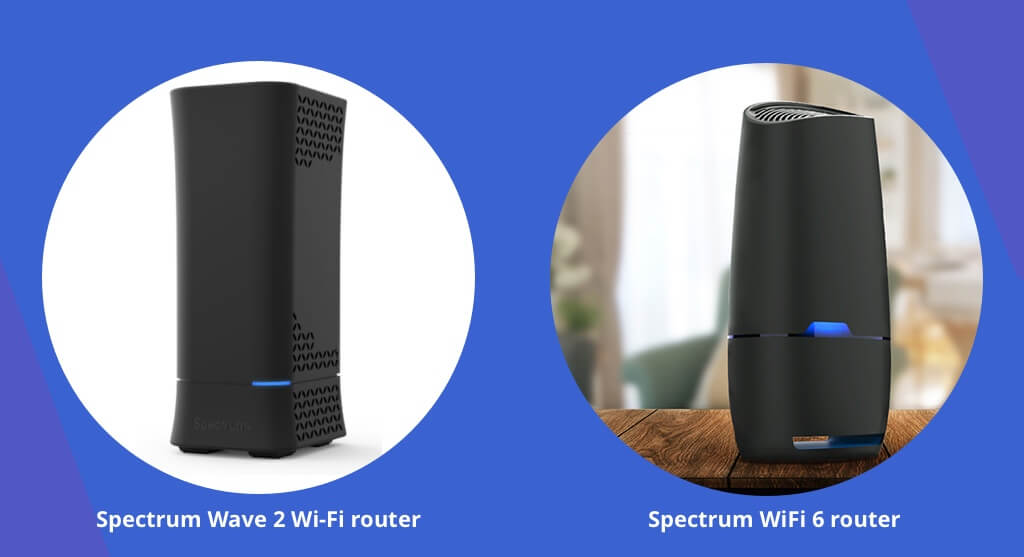
- Renting a Spectrum gateway is convenient and supported. Own a router if you want more control, advanced features, or to save long term.
- If you buy your own, confirm Spectrum compatibility and whether bridge mode is supported.
When calling support, provide a clear timeline of tests you tried, log excerpts, and speed test results. This speeds resolution and helps techs diagnose faster.

Tips to Improve Wi‑Fi Performance
Small changes yield big gains. Try these practical tips.
-
Optimal placement
- Put the router near the center of the home and high off the floor.
- Avoid placing it near microwaves, cordless phones, or large metal objects.
-
Use correct band and channel
- Use 5 GHz for short-range high-speed needs and 2.4 GHz for wider coverage.
- Set channels manually if interference is heavy.
-
Use mesh or extenders for large homes
- Mesh systems offer seamless roaming and more consistent speeds across rooms.
- Extenders can help, but may cut throughput if not configured well.
-
Secure and streamline the network
- Change default admin credentials and use strong Wi‑Fi passwords.
- Remove unused devices and disable guest networks when not needed.
-
Quality of Service (QoS) and device prioritization
- Prioritize video calls and gaming devices during peak hours.
- QoS can reduce lag for critical applications.
Real-world tip: I boosted a small office’s Wi‑Fi by moving the router from a closet to an open shelf, switching to a clearer channel, and enabling the 5 GHz band for modern devices.
Frequently Asked Questions of Spectrum Router Troubleshooting
How do I reset my Spectrum router?
Press and hold the reset button on the router for 10–15 seconds until lights blink, then reconfigure settings. Backup any custom settings before resetting.
Why is my Spectrum router showing connected but no internet?
This usually means the router is online locally but the modem or ISP is down. Check Spectrum outage status and test a wired connection to confirm.
Can I use my own router with Spectrum service?
Yes. You can use a compatible router with Spectrum, often by putting the Spectrum gateway in bridge mode. Confirm compatibility and settings before switching.
How often should I update my router firmware?
Check for updates every few months or when you see stability issues. Apply updates cautiously and note release notes to avoid unexpected changes.
What causes frequent Wi‑Fi drops with Spectrum routers?
Common causes are interference, overheating, outdated firmware, and loose cables. Run the basic Spectrum Router Troubleshooting steps like power cycling and channel changes first.
How can I tell if the router or modem is the problem?
Test a wired connection directly to the modem (if possible) or swap devices if you have spares. If wired to the modem is fine, the router likely needs attention.
Conclusion
Spectrum Router Troubleshooting is a practical skill you can master with clear steps: check outages, inspect cables, power cycle, test wired connections, update firmware, and adjust wireless settings. Use the advanced tips when basics fail, and call Spectrum support with logs and test results when needed. Take action today—try the simple power cycle and a wired speed test, then apply the steps above to regain stable, fast Wi‑Fi. Share your results, ask questions, or subscribe for more troubleshooting guides.

