

Quick fix: Restart router and update firmware to resolve most connectivity problems quickly.
I have spent years fixing home and small-office networks, and I know Netgear Router Troubleshooting from the inside out. This guide walks you through clear, step-by-step fixes, practical tips, and real-life lessons so you can diagnose and solve common Netgear router problems with confidence.

36% off Today’s Exclusive Deals
Limited-time Exclusive Deals. Check current discount on Amazon.
Check Price on Amazon As an Amazon Associate I earn from qualifying purchases.:max_bytes(150000):strip_icc()/Netgear_WirelessRouters_NighthawkX10AD7200_04-abc45a63844e4ebe8f43e4f6facbd601.jpg)
Common Symptoms of Netgear Router Problems
Netgear Router Troubleshooting starts with noticing the signs. Common symptoms include slow Wi-Fi, frequent disconnects, no internet access, odd LED patterns, and devices that can’t obtain an IP address.
These signs help narrow the cause to software, hardware, or environmental issues.
Knowing the symptom makes it faster to pick the right fix.
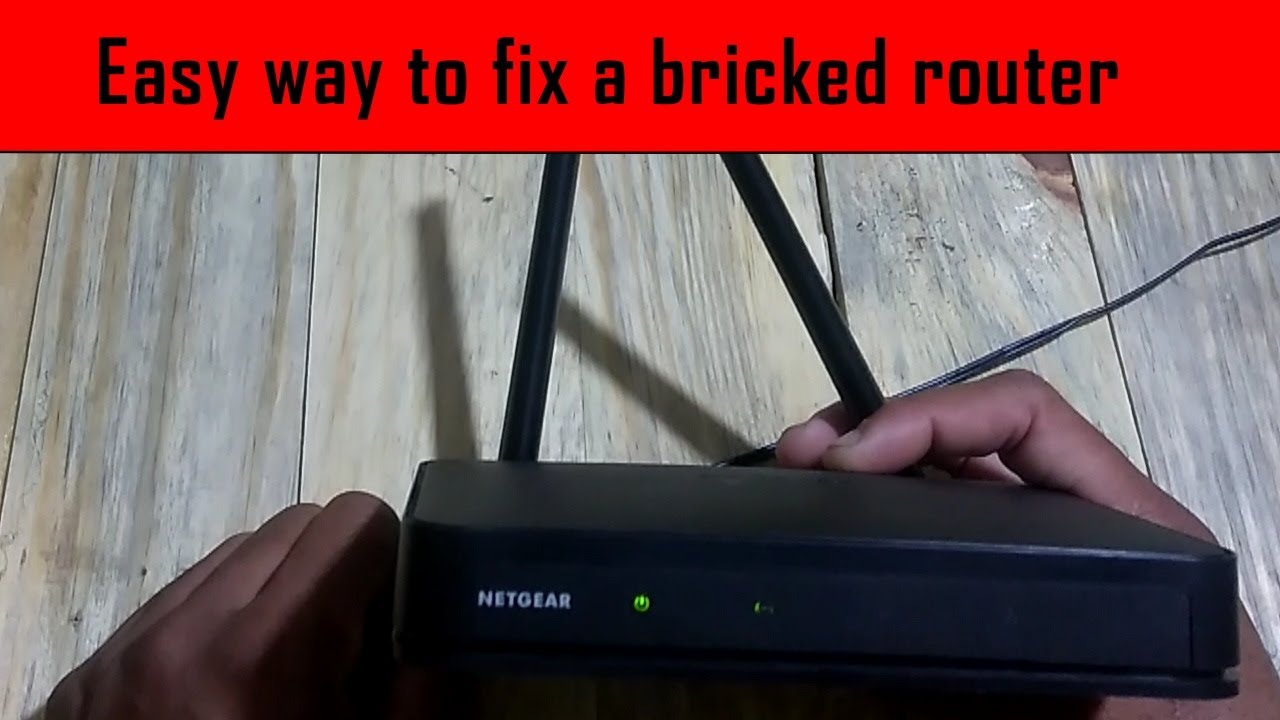
Quick Checklist Before You Troubleshoot
A short checklist saves time and prevents needless resets. Try these quick checks first:
- Confirm the modem and router power lights are on.
- Verify cables are firmly seated and not damaged.
- Test internet on another device to isolate the router.
- Reboot modem then router, waiting 60 seconds between each.
- Check for known outages from your internet provider.
This checklist resolves many issues before deeper troubleshooting.

Step-by-Step Netgear Router Troubleshooting Guide
Follow these clear steps in order to find the root cause and fix it.
- Power cycle the network
- Unplug the router and modem, wait 30–60 seconds, then plug the modem back in followed by the router.
- Power cycling clears many transient faults and refreshes IP assignments.
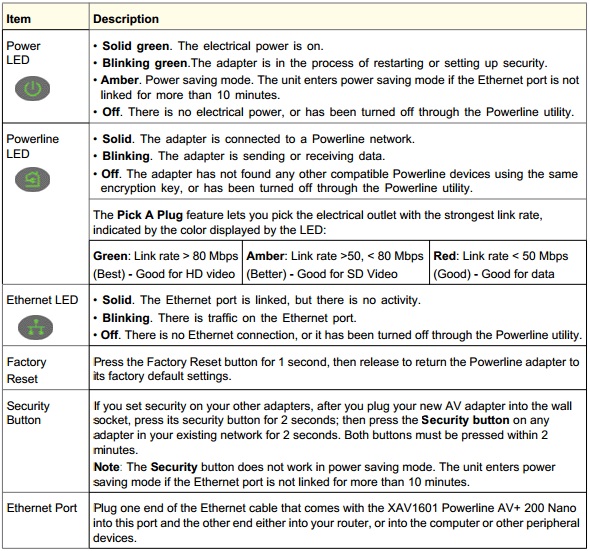
- Inspect LEDs and status lights
- Solid power and internet lights usually mean the hardware is fine.
- Blinking amber or red can indicate WAN or firmware issues.
- Test wired vs wireless
- Connect a laptop via Ethernet. If wired works, the problem is Wi‑Fi specific.
- If wired also fails, focus on the WAN side or ISP.
- Run a speed test and ping
- Use a trusted speed test from a wired device.
- Ping the gateway (192.168.1.1) and an external IP (8.8.8.8) to check latency and packet loss.
- Log into the router admin
- Access 192.168.1.1 or routerlogin.net. Default credentials are often admin/password but may differ.
- Check status, connected devices, logs, and WAN settings.
- Update firmware
- Check for firmware updates in the admin page or the Netgear app.
- Always back up settings before applying updates.
These steps solve a large share of Netgear Router Troubleshooting cases quickly.
Common Software Fixes and Settings
Software settings cause many connectivity issues. These fixes are safe and effective.
- Firmware updates
- Security: change default admin and Wi‑Fi passwords.
- Channel and band control: move 2.4 GHz devices to 2.4 GHz and use 5 GHz for faster devices.
- DHCP and IP conflicts: reserve addresses or increase DHCP range.
- Quality of Service (QoS): prioritize video calls or gaming to improve performance.
I once fixed a client’s slow Wi‑Fi by switching a crowded 2.4 GHz channel and enabling Smart Connect. The speed jump was immediate.
Advanced Netgear Router Troubleshooting
When basics fail, try these advanced steps.
Factory reset and restore
- Use the reset button for 10 seconds to restore defaults. Back up settings first.
- Reconfigure with secure credentials and firmware updated.
Static IP and DNS
- Try manual DNS (like 1.1.1.1 or 8.8.8.8) to bypass slow or broken ISP DNS.
- Use a static IP for critical devices when DHCP causes conflicts.
Bridge, modem, and double NAT
- If using a modem-router combo from ISP, put it in bridge mode or enable your Netgear router in Access Point mode to avoid double NAT.
- Double NAT causes port forwarding and gaming issues.
Logs and diagnostics
- Review system logs for repeated errors.
- Use packet capture or traceroute for persistent routing issues.
These advanced steps require caution. I always record settings before changes to avoid losing a working configuration.

Hardware Checks and When to Replace
Not all problems are software. Hardware can fail.
- Inspect power adapter and cables for wear or heat damage.
- Overheating: ensure the router has airflow and is not in a closed cabinet.
- Antenna and port damage: replace loose antennas or use a USB Wi‑Fi adapter for testing.
- Age: routers older than 5 years may lack performance and security updates.
If basic fixes don’t help and LEDs show hardware fault, plan replacement. Upgrading to a newer Netgear Nighthawk or Orbi mesh improves speed and coverage.
Using Netgear Apps and Tools
Netgear offers helpful tools for troubleshooting.
- Netgear Nighthawk app
- Netgear Orbi app
- Router web UI diagnostics
Apps guide you through firmware updates, speed tests, guest networks, and basic diagnostics. They are useful for quick fixes and monitoring.
Performance Optimization and Best Practices
Optimizing your setup prevents recurring issues.
- Place the router high and central. Avoid thick walls and microwaves.
- Use 5 GHz for high-bandwidth devices and 2.4 GHz for range.
- Create a guest network for visitors to protect your main network.
- Schedule reboots during low-use hours if stability improves after restarts.
- Keep firmware current and monitor connected devices.
These practical tips will reduce the need for Netgear Router Troubleshooting over time.
Personal Experience and Common Mistakes
I have rebuilt many home networks. Here are lessons learned:
- Always back up settings before a reset or firmware update.
- Don’t change many settings at once. Change one setting, test, then proceed.
- Avoid default passwords. I once recovered a small office network that was compromised due to unchanged admin credentials.
- Test changes with a wired device to isolate wireless variables.
These small habits speed recovery and prevent repeat issues.
People Also Ask — Quick Answers
What should I try first when my Netgear router drops connection?
- Restart the modem and router in sequence, check cables, and test a wired connection.
How do I update Netgear router firmware safely?
- Back up settings, download firmware through the router UI or app, then apply the update while the router stays powered.
Why is my Netgear router slow at night?
- Peak ISP usage and Wi‑Fi interference often slow speeds; change channel or schedule maintenance reboots.
Can a factory reset fix all Netgear router problems?
- It can resolve software issues but will erase settings, so back up before resetting.
How do I avoid IP conflicts on my Netgear router?
- Use DHCP reservations or set a clear DHCP range and reserve static IPs outside that range.
Frequently Asked Questions of Netgear Router Troubleshooting
How do I access my Netgear router admin page?
Open a browser and go to 192.168.1.1 or routerlogin.net. Enter your admin username and password; change defaults for security.
What is the safest way to update firmware?
Back up your current settings, ensure stable power, then run the firmware update from the router UI or Netgear app.
Why do devices lose Wi‑Fi but wired devices work?
This usually means a wireless configuration or interference problem. Check channels, SSID settings, and nearby devices.
How do I fix slow Wi‑Fi speeds on a Netgear router?
Move the router, use 5 GHz for fast devices, update firmware, and reduce interference by changing channels.
When should I replace my Netgear router?
Replace when hardware fails, firmware is no longer updated, or when your speed and range needs exceed the router’s capabilities.
Can Netgear router issues be caused by my ISP?
Yes. ISP outages, modem issues, or throttling can mimic router faults. Test with a direct modem-to-device connection to verify.
Is it safe to reset my router to factory settings?
Yes, but back up your settings first. You will need to reconfigure Wi‑Fi, passwords, and any custom settings.
Why does my router keep rebooting?
Possible causes include overheating, faulty power adapter, corrupted firmware, or hardware failure. Check logs and temperature.
How do I troubleshoot intermittent disconnects?
Use logs, ping tests, and eliminate interference. Test different Wi‑Fi channels and check for power or temperature issues.
What does a blinking amber light mean on Netgear routers?
A blinking amber light often signals a problem with firmware, boot process, or WAN connectivity; check logs and perform a safe reboot.
Conclusion
Netgear Router Troubleshooting becomes simple when you follow a clear plan: observe symptoms, run a quick checklist, apply step-by-step fixes, and use advanced methods only as needed. Back up settings, update firmware, and practice good security to avoid repeat problems. Take one action today—restart your router and check for firmware updates—and see if your issue improves. If you found this guide useful, leave a comment, subscribe for more tips, or share your own troubleshooting story.

